
Data Objects
- You can use an RSS feed to publish information you update often, such as news, events, blogs, etc. The content is output in an xml format which can be read by a program or another site (depending on the browser).
- In this example you need to incorporate an RSS feed from an external site by using a Data Object.
Build the Site Structure
- To create the section for the RSS Feed Content, select + Create section from the Actions Menu beside your main section.
- Enter a name for your section, e.g. RSS Feed from Terminalfour.
- If you plan to link to this from elsewhere, you may wish to uncheck the box “Show in navigation”.
- Click Save changes. The section has been added to your Site Structure.
Build the Content Type
- You need a Content Type with two Content Layouts to pull in the information from the external RSS feed as well as display it on your site. To create this, go to Assets > Content Types > + Create content type.
- Fill in the General content type information:
- Name: enter a name here. This should suggest what type of content it is used for.
- Description: describe in more detail when to use this Content Type.
- Minimum User Level: if you wish to restrict who can use this Content Type, you can set a level here. If Content Types are created in groups, a user has to be a member of the group as well as meet the minimum user level criteria in order to use the Content Type.
- Enable in direct edit: decide if Direct Edit can be used for this Content Type.
- Mark as an eForm: check only if this is for eForms.
- Workflow: if relevant, enable a workflow for content using this Content Type.
- Primary group: if appropriate, select this group who will be working with this Content Type.
- Select the Elements tab.
- Click + Add element and add the element you need by filling in the relevant information:
| Name | Description | Type | Max Size | Required |
|---|---|---|---|---|
| URL | Enter your URL for RSS Feed here | Plain Text | 1000 | Yes |
- Click Save changes. The Content Layouts tab now opens. Click +Add content layout.
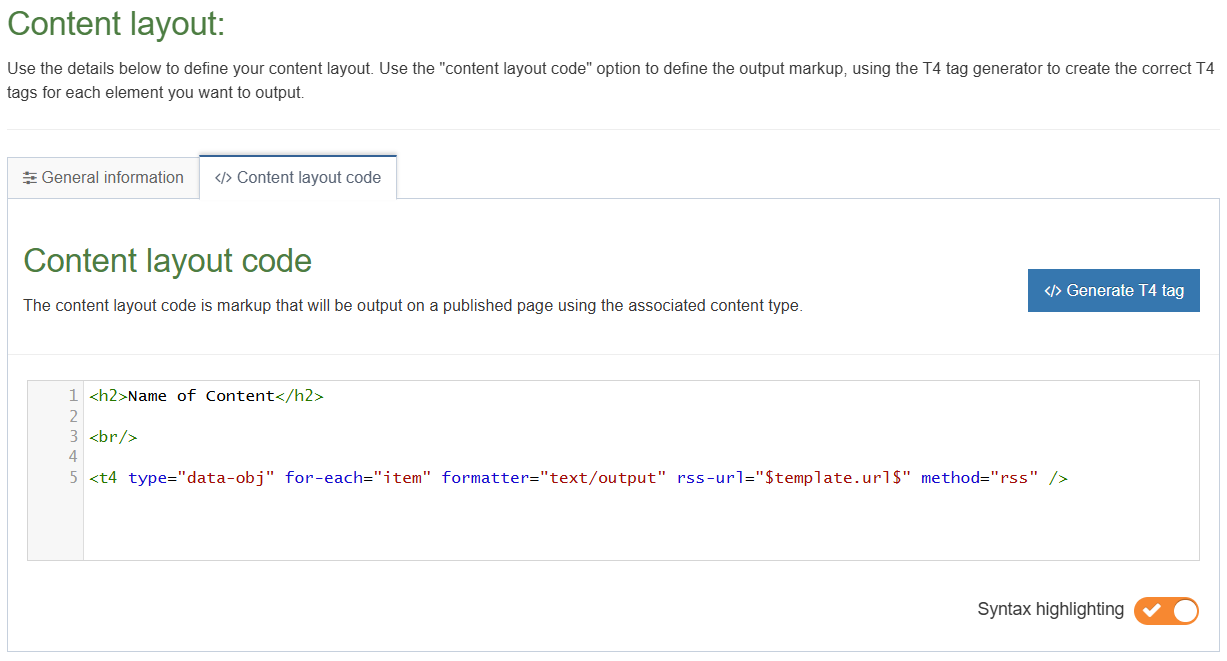
- We will build two content layouts. The first Content Layout will be used to fetch the information from the RSS feed and output the Name from the content as well as the newsfeed. Use the sample code in the Content layout code box below as a starting point and modify as needed:
- data-obj: refers to the RSS Data Object and should not be changed.
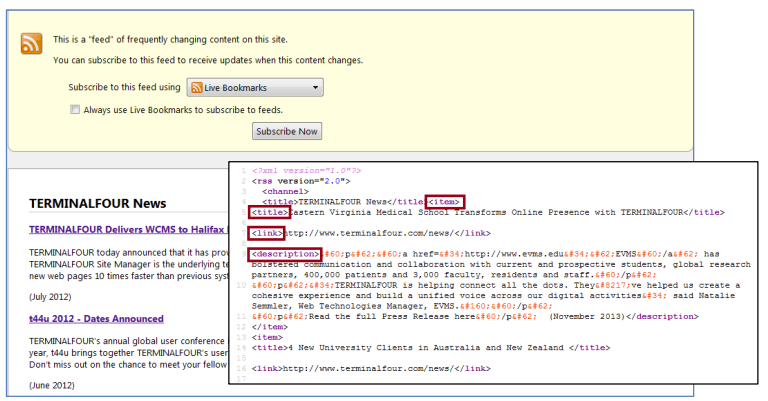
- for-each: refers to the individual news feed item. You need to check the source of the RSS to see if it uses "item" tags or something else. See the example below.
- formatter: specifies which Content Layout to display to control the output. In the example below it is text/output (we will build that later).
- rss-url: outputs the value of URL element. The format of this is "$template.[name_of_element]$" (insert exact Element name).
- method: should be "rss" for this type of feed.
- Generate a T4 Tag to output the Name element.
- Once all values match your RSS feed source code (see the blue information box below), click Save changes. The first Content Layout is complete.
Max Size
To control the amount of items brought in by the RSS Data-Object, you can modify the T4 tag adding a max-number value. As seen below.
<t4 type="data-obj" for-each="item" formatter="text/output" rss-url="$template.url$" method="rss" max-number="5" />
Build the Content Type - continued
- To create the second Content Layout, click +Add content layout.
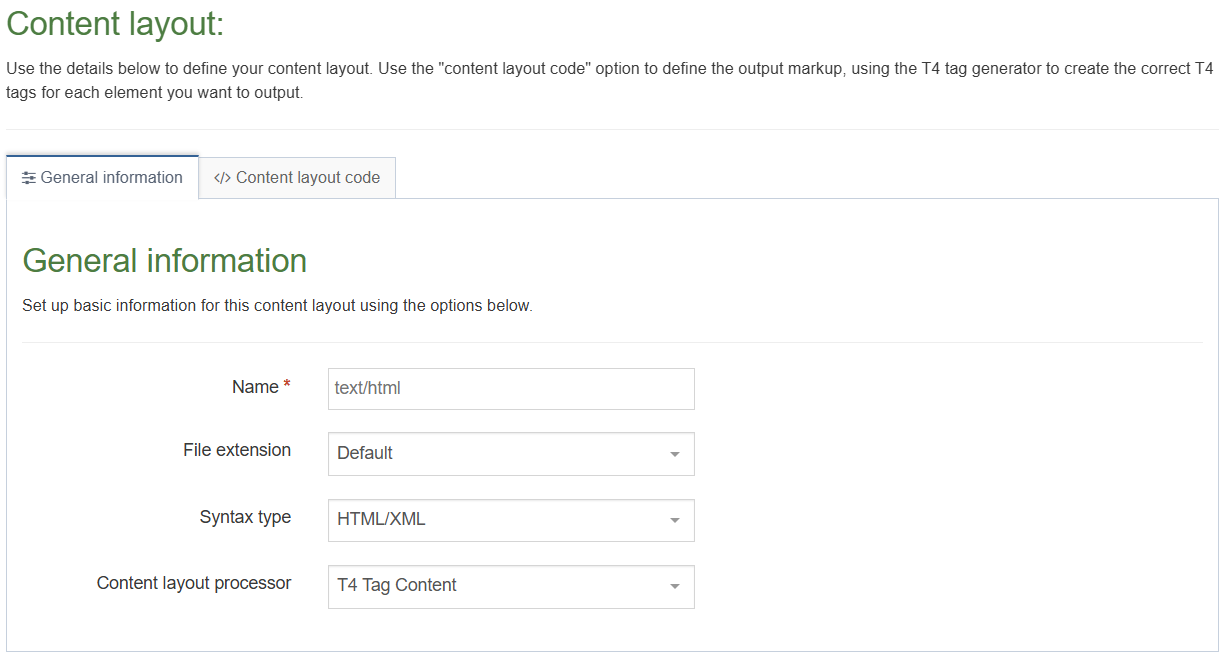
- Fill in the Content Layout Name. This must match what you specified as the Content Layout above, e.g. text/output.
- Use the sample code in the Content Layout Code box below as a starting point and modify as needed:
- link: refers to the individual news feed link. You need to check the source of the RSS to see if it uses "link" tags or something else. See the example on the previous page.
- title: refers to the individual news feed title. You need to check the source of the RSS to see if it uses "title" tags or something else. See the example on the previous page.
- description: refers to the individual news feed description. You need to check the source of the RSS to see if it uses "description" tags or something else. See the example on the previous page.
- Once all values match your RSS feed source code, click Save changes. The second Content Layout is complete.
-Content-Layout.png)
-Content-Layout-Code.png)
Enable & Test Content Type
- Enable your Content Type, so you can test it. On the Site Structure screen, select Edit section from the Actions menu beside the section you created earlier.
- Select the Content types tab.
- Click the radio button to enable the Content Type for either the branch or section:
- Enabled (branch): the Content Type can be used in this section as well as all its sub-sections.
- Enabled (section): the Content Type can be used in this section only.
- Click Save changes.
- Select +Create content from the Actions menu beside the section you just updated.
- Select your new Content Type.
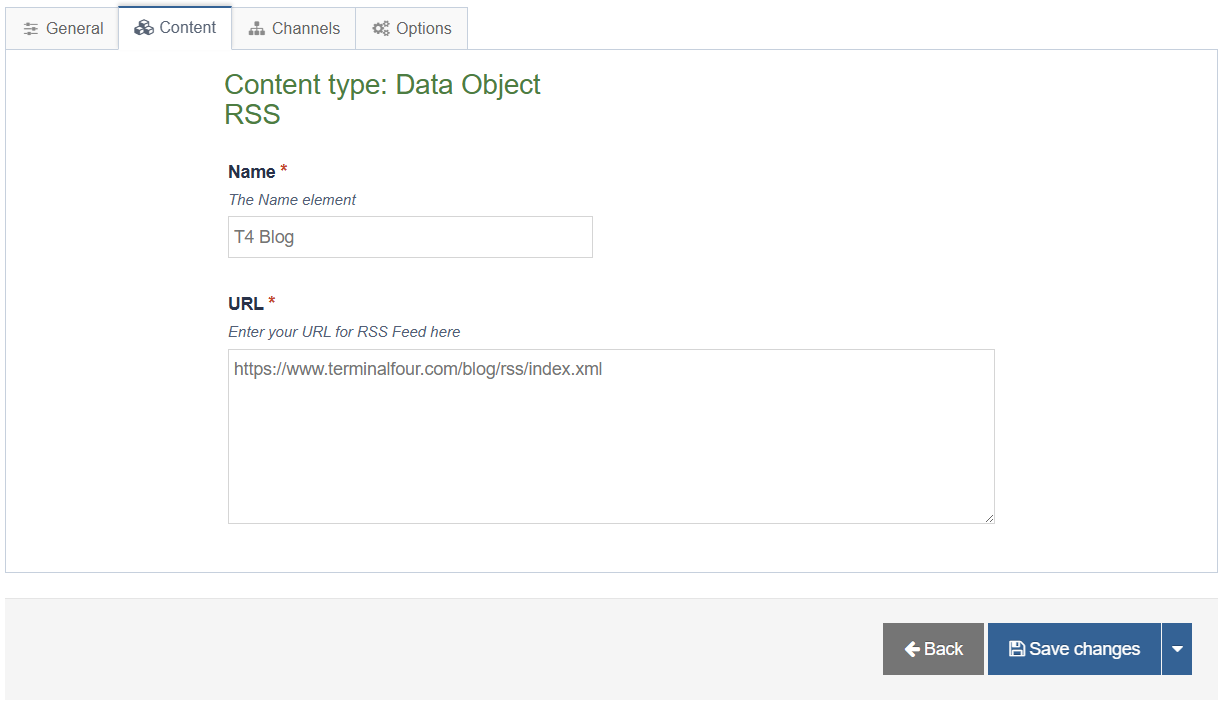
- Enter a Name and the RSS feed's URL.
- Click Preview.
- If you are happy with the result, close the preview and click Save changes.
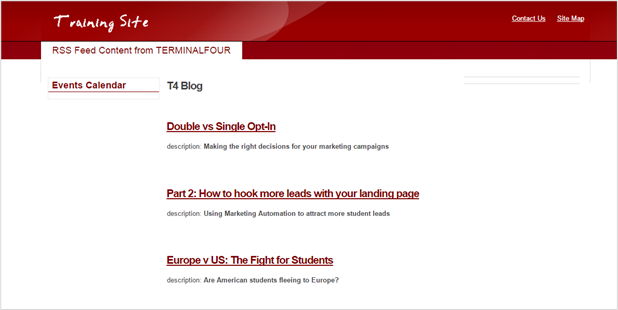
- The external RSS feed is now displayed on your page and will update whenever new items become available.
Feedback survey
Congratulations on completing the Advanced Web Developer Training module.
Please provide feedback in our on-line survey.