
Keyword Search
- The Keyword Navigation Object is used for obtaining keywords from a Content Type element in the current, parent or specified section, storing these keywords and then using them to find all content with matching keywords in another specified Content Type element.
- And in plain English that means if, for instance news items are "tagged" with keywords, you can specify elsewhere on the site that only news items with the matching keywords should be displayed.
- To make sure the keywords are entered correctly, create a list, and add an element to your News Content using the list to specify which keyword(s) to display on the site.
Before You Start
Be sure you have the following added to your training site:
• “News” section with a “News” content type enabled. If you don’t have one, you may duplicate one to your Site structure.
• Add a few news stories that we’ll fetch later.
Create a keyword list
Having a list of keywords gives you full control of the keyword options available to your content editors when they are categorizing their news items.
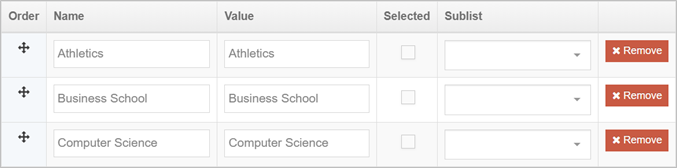
| Name | Value | Selected | Sublist |
|---|---|---|---|
| Athletics | Athletics | ||
| Business School | Business School | ||
| Computer Science | Computer Science |
- To create a list, go to: Assets > Lists > +Add new list.
- Fill in the List information:
- Name: enter a name for your list.
- Description: enter a description for your list.
- Localization:
- Use current language version of this list: when this box is checked, no translations of this list will be used.
- Only use this list when localized versions are not available: when this box is checked, this list is used regardless of whether there is a translation.
- Primary group: select a group if appropriate
- List items: add your list entries, i.e., the keywords you wish to use in your News Content.
- Name: this is what the user sees when creating content
- Value: this is what is published on the site. If this value is left blank -the list item is not published on the site
- Selected: check this box to ensure the list is selected by default when the list is used
- Sublist: select when you want to create a cascading list. Using the drop-down list, select the sublist to be linked to other sublists. By doing so, you create multiple levels in the cascading list.
- Click Save changes to save the list.
Add the list to your news content type
- Lists can be added to Content Types using one of the List Elements.
- The example below shows the list added to a content type using the Check Box element. If you have many list items, you might prefer to use the Multiple Select element.
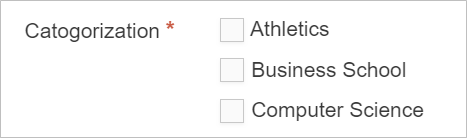
- You need to add a list element to your News Content. To do this, go to Assets >Content Types.
- Filter for your news Content Type and click Actions > Edit to begin editing.
- Select the Elements tab and click +Add element.
- Add an element similar to the one in the table below.
| Name | Description | Type | List | Maximum Size | Required | Show |
|---|---|---|---|---|---|---|
| Keywords(s) | Select a keyword to search content by |
Checkbox | [Select your list] |
Default | Yes/No | Yes |
- Click Save changes.
- Enable the News Story Content Type and ensure you also add/update at least 1 piece of content using the News Content Type, as the new element will otherwise not be in use.
Create Sections and enable Content Type
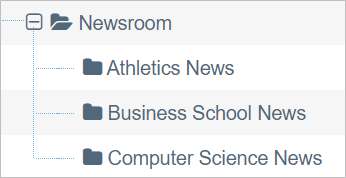
- On the Site Structure screen, create news section under your News section. Select Edit section from the Actions menu beside your News section.
- Select the Content types tab.
- Using the Filter tool, find your Keyword Selector Content Type, and click the radio button to enable the Content Type for either the branch or the section:
- Enabled (branch): the Content Type can be used in this section as well as all its sub-sections.
- Enabled (section): the Content Type can be used in this section only.
- Click Save changes.
Create a Keyword Content Type
The Keyword Content Type will allow you to specify the keyword(s) for the search/fetch criteria.
- To start the work, go to Assets > Content Types > +Create content type.
- Fill in the General information:
- Name: enter a name here. This should suggest what type of content it is used for, e.g., Keyword Selector.
- Description: describe when to use this Content Type, e.g., Specify keyword to search/fetch content by.
- Minimum user level: if you wish to restrict who can use this Content Type, you can set a level here.
- Enable Direct Edit: decide if this Content Type can be used in Direct Edit.
- eForm: not required.
- Workflow: if relevant, enable a workflow for content using this Content Type.
- Select the Elements tab.
- Each Content Type has a Name element by default. This is used to name the content and is typically not displayed on the published site.
- Click +Add element to add the other elements you need by filling in the information as outlined below:
| Name | Description | Type | List | Max. Size | Required |
|---|---|---|---|---|---|
| Keyword | Select keyword to search/fetch content by |
Multi-select List |
[Select your list] |
Default | Yes |
- Click Save changes, the Content Layout tab appears.
- In the Content layouts tab, click +Add content layout to establish a new content layout; this ensures the content can be displayed.
- Name: use text/html.
- File extension: should be left at Default.
- Syntax type: select to enable syntax highlighting, e.g. HTML/XML.
- Content layout processor: select this as Handlebars Content.
- Content layout code: This is where we will put the Navigation tag of our Keyword Search Content Navigation object. We have not built the navigation yet so, for now, let’s put a placeholder. i.e., Navigation object to go here.
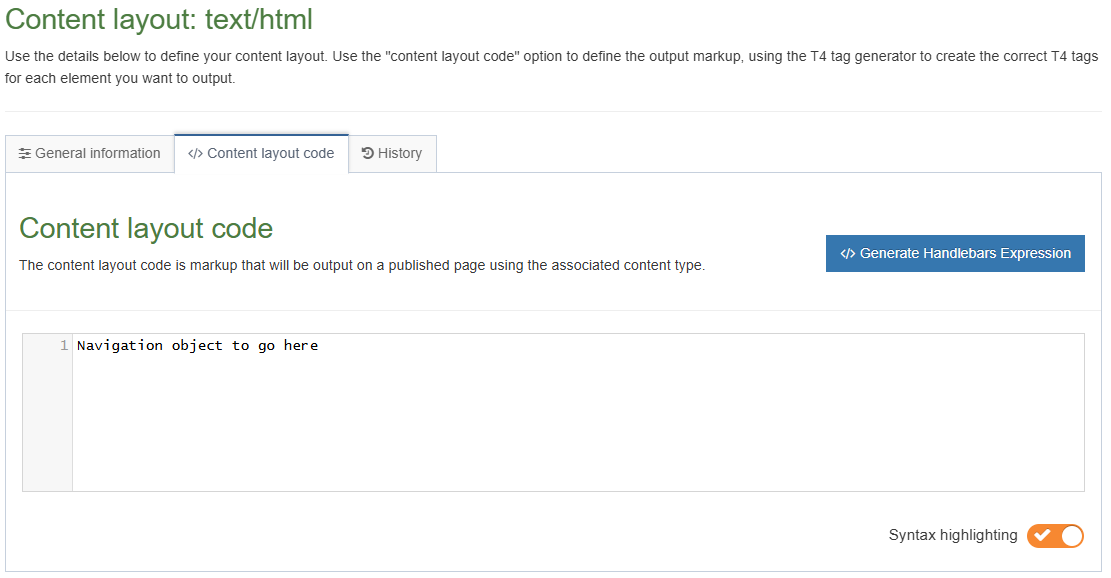
- Click Save changes. The main part of the Content Type is complete.
- Enable your Content Type to the Athletics News, Business School News, and Computer Science News Sections.
Add keyword content to your sections
- The Keyword Selector Content Type contains a Keyword element. The Keyword element is going to provide the Keyword for the Search/Fetching of content.
- Add the Keyword Search/Fetch content type to each of your filtered news sections.
- Navigate to the Site Structure screen and select Add Content from the Actions menu beside the sections you created earlier.
- Select your Keyword Selector Content Type.
- Give the piece of content a name.
- Select one or multiple Keywords from the list, i.e. Athletics News
- Save and approve your content.
- Repeat these steps for each News section you have.
- Preview your news sections to see the results.
Build keyword search content navigation
The Keyword Search Content Navigation Object is going to match keywords within a Content Type, with the keywords assigned to the News Content. It finds any matches and displays all News Content matching the keywords under the section where the Keyword Search Content Navigation Object is located.
- To build the Keyword Search Content Navigation Object, go to Assets > Navigation > +Add new navigation.
- Scroll down to find and click on the Keyword Search Content Navigation type.
- The Keyword Search Navigation object contains the following options:
- Enabled: the Navigation Object needs to be enabled, otherwise nothing will output.
- Name: enter a name for the Keyword Search e.g. News Keyword Search.
- Description: enter a description for the Keyword Search Content.
- Primary group: select if relevant.
- View in preview: lets you view non-approved content in preview.
Keyword retrieval
- Keyword fetch method: in this exercise you will be adding a piece of content specifying Keywords, the Keywords you specify will determine which content is displayed. Specify where this content is to be fetched from (in this exercise select Current Section):
- Current section: content will be fetched from the Current Section.
- Parent section: content will be fetched from the Branch, starting at the Section you specify.
- Specified section: content will be fetched from a selected section.
- Root section: if “Specified section” is selected (above), select the root section for your keyword fetch method.
- Narrow keyword selection: check this box to narrow the selected keywords to the current piece of content being published. In this exercise this can be left blank.
- Content type to get keywords: this is where you select which Content Type you use for specifying the Keywords to search for, i.e. the Keyword(s) Selector Content Type.
- Get keywords element name: in this exercise there is only one element outputting the keywords in the type selected above. Select this element (i.e. Keyword) from the populated list.
Content retrieval
- Content fetch method: select the location of the content containing the keywords.
- Specified section: this is the section that contains the content you wish to compare against the keywords selected above. In this exercise this will be the section which contains the news stories.
- Branch: selects from a branch.
- Branch at level: selects the start and end level from within the branch.
- Search section from: Choose section, or from the content element.
- Search section: select the section that contains your news items.
- Content type to search keywords: select the Content Type you wish to search for matching keywords against, i.e. the News Story Content Type.
- Search keywords element name: select the keyword element within the Content Type selected above.
- Number of pieces of content to display: the number of pieces of Content to display on one page.
- Sort type: is how you wish the content to be sorted when it is displayed on the site:
- Use Name (A-Z): Order Name element A-Z.
- Use Name (Z-A): Order Name element Z-A.
- Use Last Modify Date: Order by last modified date.
- Sort the results by a date element: if this option is checked, this will order the results according to a date element in the Content Type instead of using the sort type option above.
- Include hidden sections: if checked, include the content in hidden sections in the search.
- Allow matching of composite keywords: this will show partial matches so "composite" keywords can be matched to a "single" keyword. For example, if the "Get keywords element" contains "apple, pear, orange", it will match any content containing "apple" or "pear" or "orange".
- Allow matching on sub-items: this option will include content tagged with a taxonomy item's subitems. For example, if the keywords are entered using a cascading list, selecting a parent option in the list will display all content that match the parent or the sub-list related to the parent.
- Enable cross language searching: this option will allow you to enable matching across language searching, once enabled you need to select the languages to search in the option below.
- Before HTML: this contains the code to be output before the content. It could for instance be a list tag <ul>.
- After HTML: this contains the code to be output after the content. It could for instance be a closing list tag </ul>.
- Content layouts:
- Use channel default.
- Use alternative content layout.
- Pagination output across pages.
- Content fetch method: select the location of the content containing the keywords.
- Keyword fetch method: in this exercise you will be adding a piece of content specifying Keywords, the Keywords you specify will determine which content is displayed. Specify where this content is to be fetched from (in this exercise select Current Section):
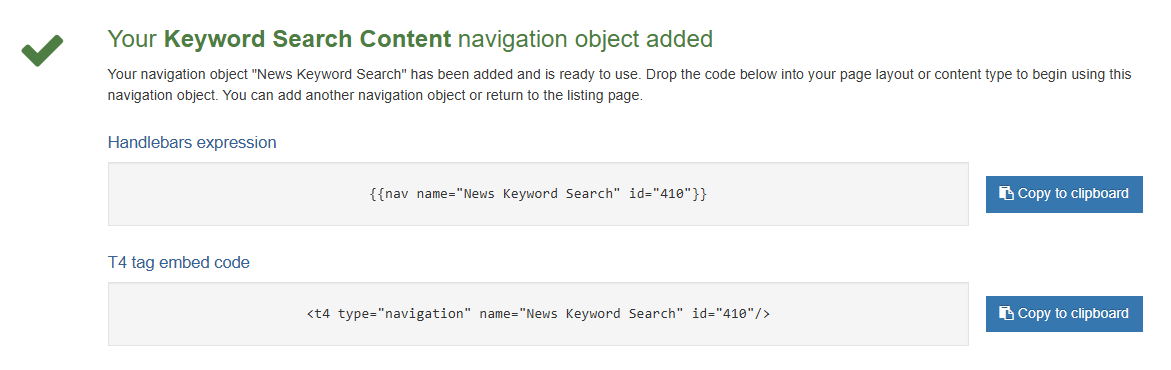
- Click Next to save the navigation object.
- Copy the Handlebars expression to your clipboard; to be pasted into your Content Type’s Content Layout.
Add Navigation Tag to Content Type’s Content Layout
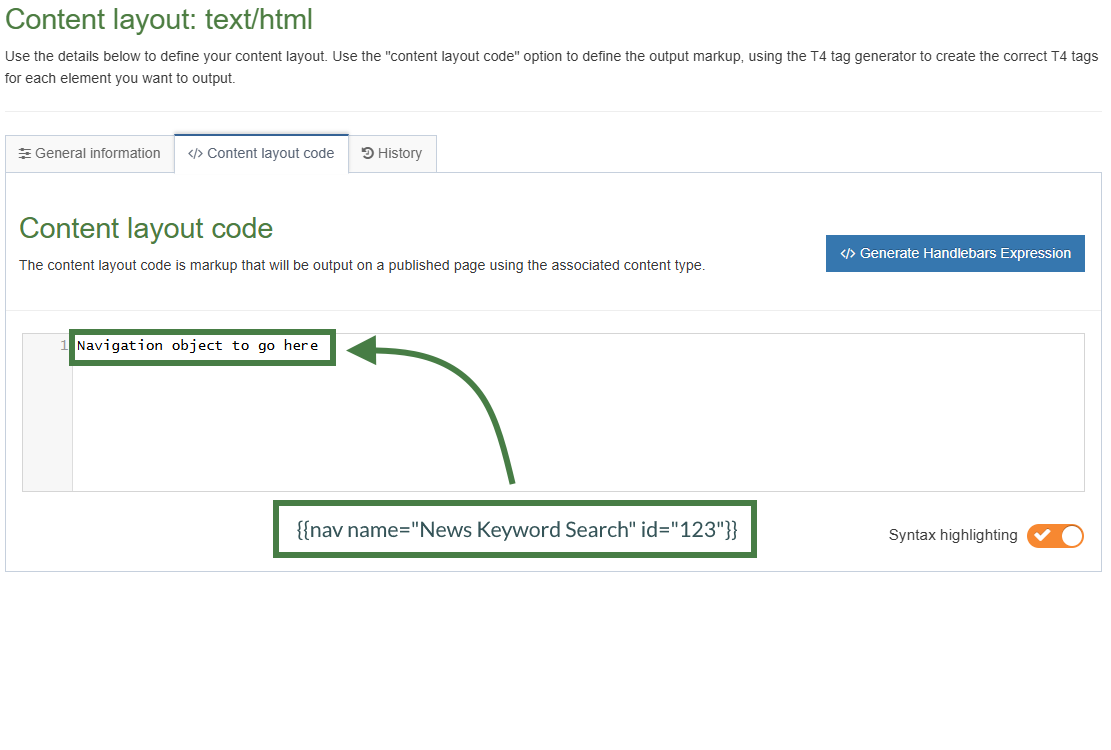
- In an earlier step you created a Content Layout with a placeholder of: “Navigation object to go here.” Now you have the Navigation Handlebars expression in your clipboard and you can paste it into the Content Layout.
- Go to Assets > Content Types.
- Filter for your Keyword Search/Fetch Content Type and click Actions > Edit to begin editing.
- Select the Content layouts tab.
- Click into your text/html layout to edit it.
- Select the Content layout code tab.
- Remove your placeholder and paste your navigation tag. If you do not have the Handlebars expression in your clipboard, you can regenerate it using the </> Generate Handlebars Expression button.
Feedback survey
Congratulations on completing the Advanced Web Developer Training module.
Please provide feedback in our on-line survey.