
Page titles
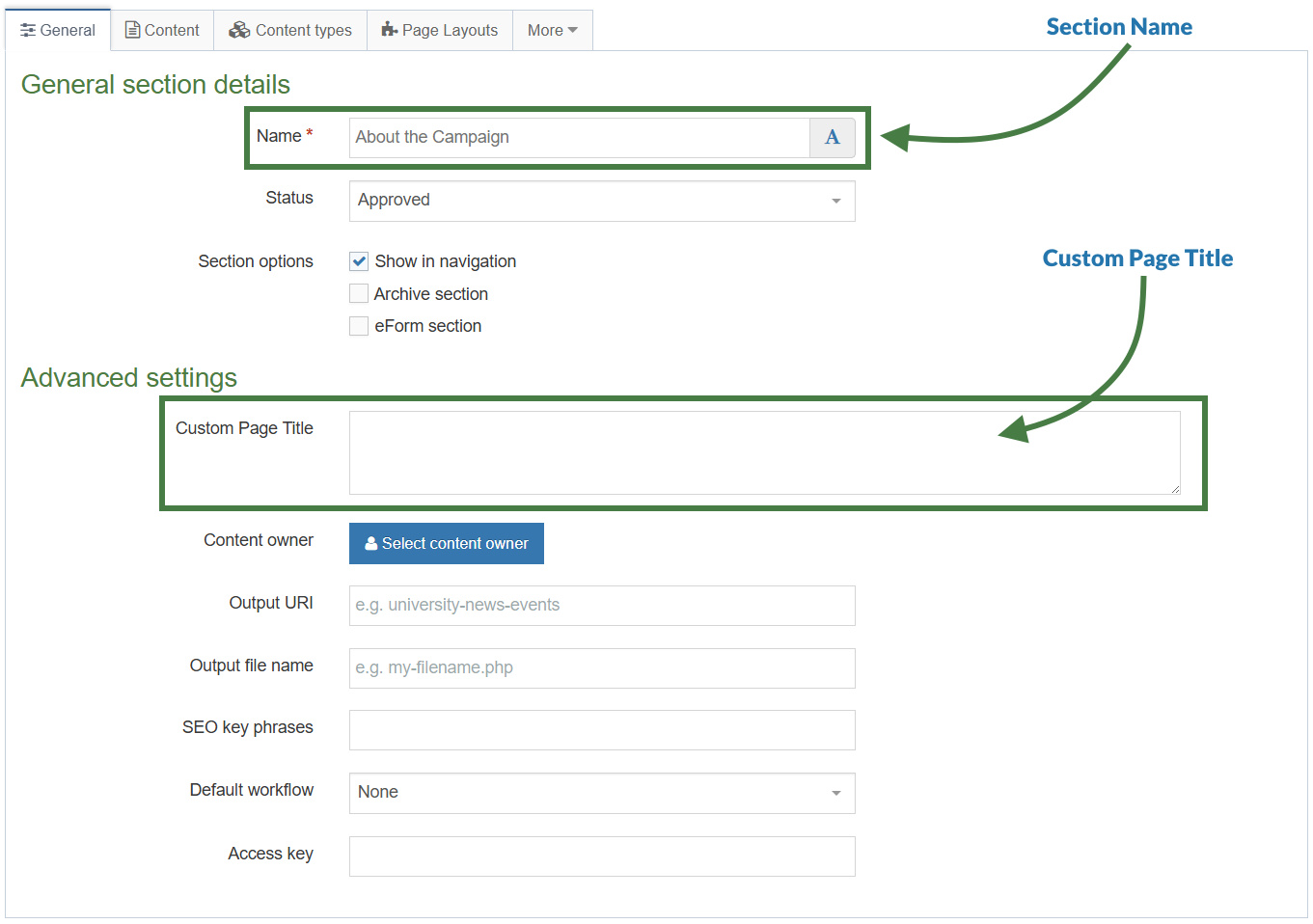
In this exercise, you will learn how to display custom page titles in the <title> tag of your Page Layout.
You will begin by outputting a Custom Page Title using the Custom Page Title field from the SectionMetaDescription Content Type.
Next, for full-text pages, you will output a content element from the Page Layout.
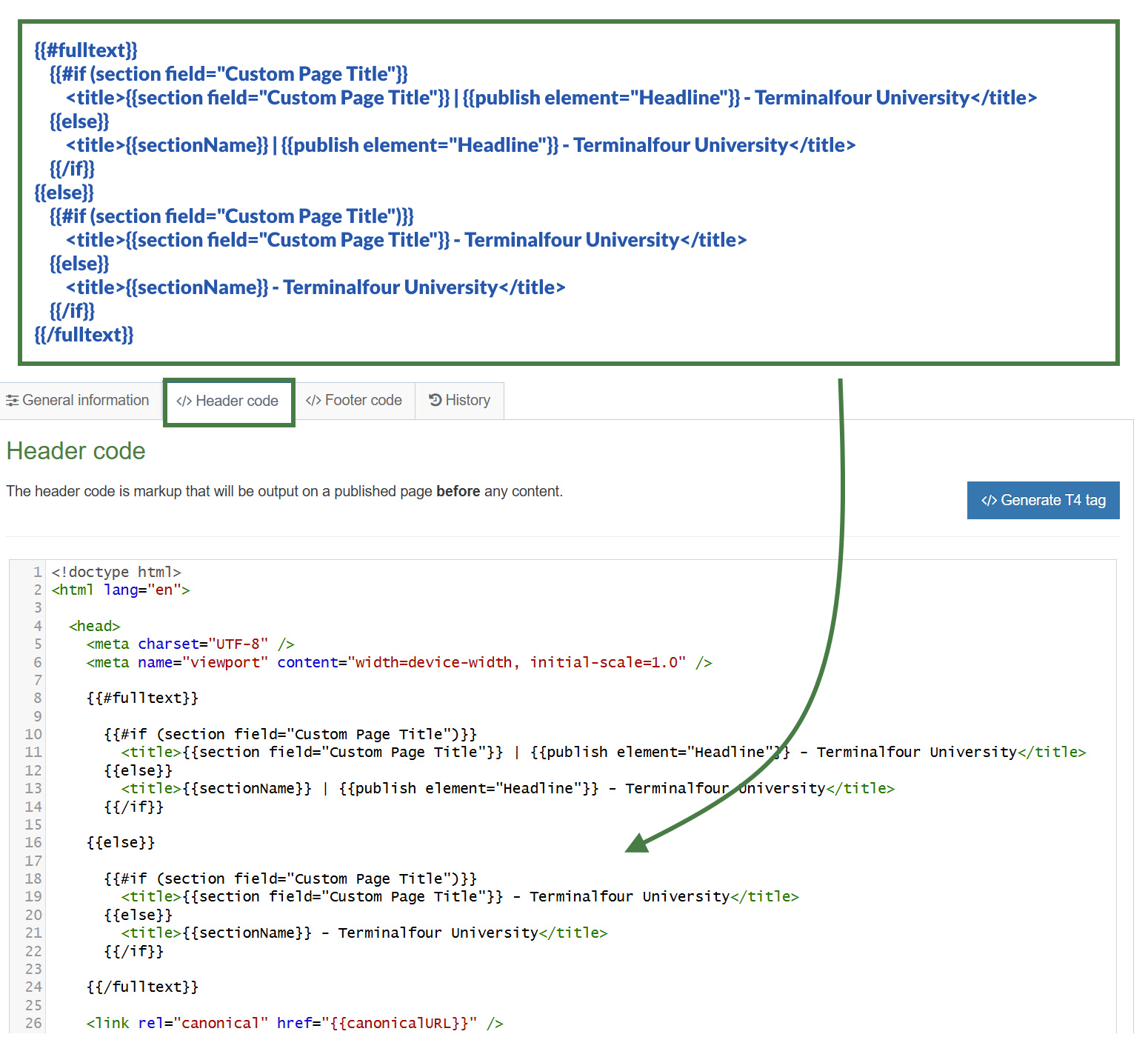
Finally, you will add conditional logic to your code so that the correct page title is displayed based on two factors:
- Whether the content element contains a value.
- Whether the current page is a full-text page.
How to display a custom page title
In this exercise, you will use the Section Helper to output the Custom Page Title field. This field is defined in the SectionMetaDescription Content Type and is available on the General tab of each section.
- Go to Assets > Page Layouts.
- Click your Page Layout to open it for editing. (Use the Filter tool to locate it if needed.)
- Open the </> Header code tab.
- Click </> Generate Handlebars Expression.
- In the Section tab:
- Under Section metadata, select the Section meta field radio button.
- Select Custom Page Title from the drop-down list.
- Click Copy to clipboard to copy the generated Handlebars expression.
- Add the Handlebars code to the title tag in the Page Layout.
<title>{{section field="Custom Page Title"}} - Terminalfour University</title>
- Click Save Changes to save your updates to the Page Layout.
- Refresh the preview to verify that the custom page title is displayed correctly.
How to use the if/else Helpers
- Go to Assets > Page Layouts.
- Click your Page Layout to open it for editing. (Use the Filter tool to locate it if needed.)
- Open the </> Header code tab.
- You will use the if helper to determine whether the Custom Page Title field in SectionMetaDescription contains a value. If it does, output the Custom Page Title in the
<title>tag. Otherwise, use the else helper to output the section name with the sectionName helper. - Click </> Generate Handlebars Expression.
- Open the </> Misc tab.
- Select if from the Helpers drop-down list.
- Click Copy to clipboard, then paste the generated
if/elseblock into the title of the Page Layout. - Modify the generated code as follows::
- Update the
ifcondition to check whether the Custom Page Title field contains a value. - Output the Custom Page Title when a value is present.
- In the
elseblock, output the section name using the sectionName helper.
- Update the
{{#if (section field="Custom Page Title")}}
<title>{{section field="Custom Page Title"}} - Terminalfour University</title>
{{else}}
<title>{{sectionName}} - Terminalfour University</title>
{{/if}}
- Click Save Changes to save your updates to the Page Layout.
- Refresh the preview to verify that the correct page title is displayed.
The fulltext Helper (block level variant)
The fulltext Helper is available in both standard and block expression forms, and its behavior depends on how it is used.
When used as a standard expression, the fulltext Helper outputs a link to the full-text page for a specified Content Type.
In this exercise, you will use the block expression form of the fulltext Helper. This form allows you to determine whether the current page is a full-text page, enabling you to display different output based on the page type.
How to use the fulltext Helper (block level variant)
- Go to Assets > Page Layouts.
- Click your Page Layout to open it for editing. (Use the Filter tool to locate it if needed.)
- Open the </> Header code tab.
- Click </> Generate Handlebars Expression.
- Open the </> Misc tab.
- Select fulltext from the Helpers drop-down list.
- Click Copy to clipboard, then paste the generated fulltext block into the Page Layout.
- Update the code to use the fulltext Helper to check whether the current page is a full-text page. When it is, output the Headline element within the
<title>tag.
{{#fulltext}}
{{#if (section field="Custom Page Title")}}
<title>{{section field="Custom Page Title"}} | {{publish element="Headline"}} - Terminalfour University</title>
{{else}}
<title>{{sectionName}} | {{publish element="Headline"}} - Terminalfour University</title>
{{/if}}
{{/fulltext}}
A great benefit of using the fulltext Helper as a block level expression in page layouts is that you have access to the elements of the Content Type which is something that isn't possible using t4 tags. This allows you to use the publish Helper to output the "Headline" element of the fulltext Content Type.
- Add an else condition to handle cases where the current page is not a full-text page. Within the else block, add the original code created in the How to use the if/else Helpers exercise.
{{#fulltext}}
{{#if (section field="Custom Page Title")}}
<title>{{section field="Custom Page Title"}} | {{publish element="Headline"}} - Terminalfour University</title>
{{else}}
<title>{{sectionName}} | {{publish element="Headline"}} - Terminalfour University</title>
{{/if}}
{{else}}
{{#if (section field="Custom Page Title")}}
<title>{{section field="Custom Page Title"}} - Terminalfour University</title>
{{else}}
<title>{{sectionName}} - Terminalfour University</title>
{{/if}}
{{/fulltext}}
Note that by adding an else condition to the fulltext Helper, you are now also creating a nested if within your logic.
- Click Save Changes to save your updates to the Page Layout.
- Refresh the preview to verify that the correct page title is displayed for both full-text and non-full-text pages.
Preview
The preview Helper is used to determine whether or not the page is currently being previewed or not. It allows you to output content only in Preview.
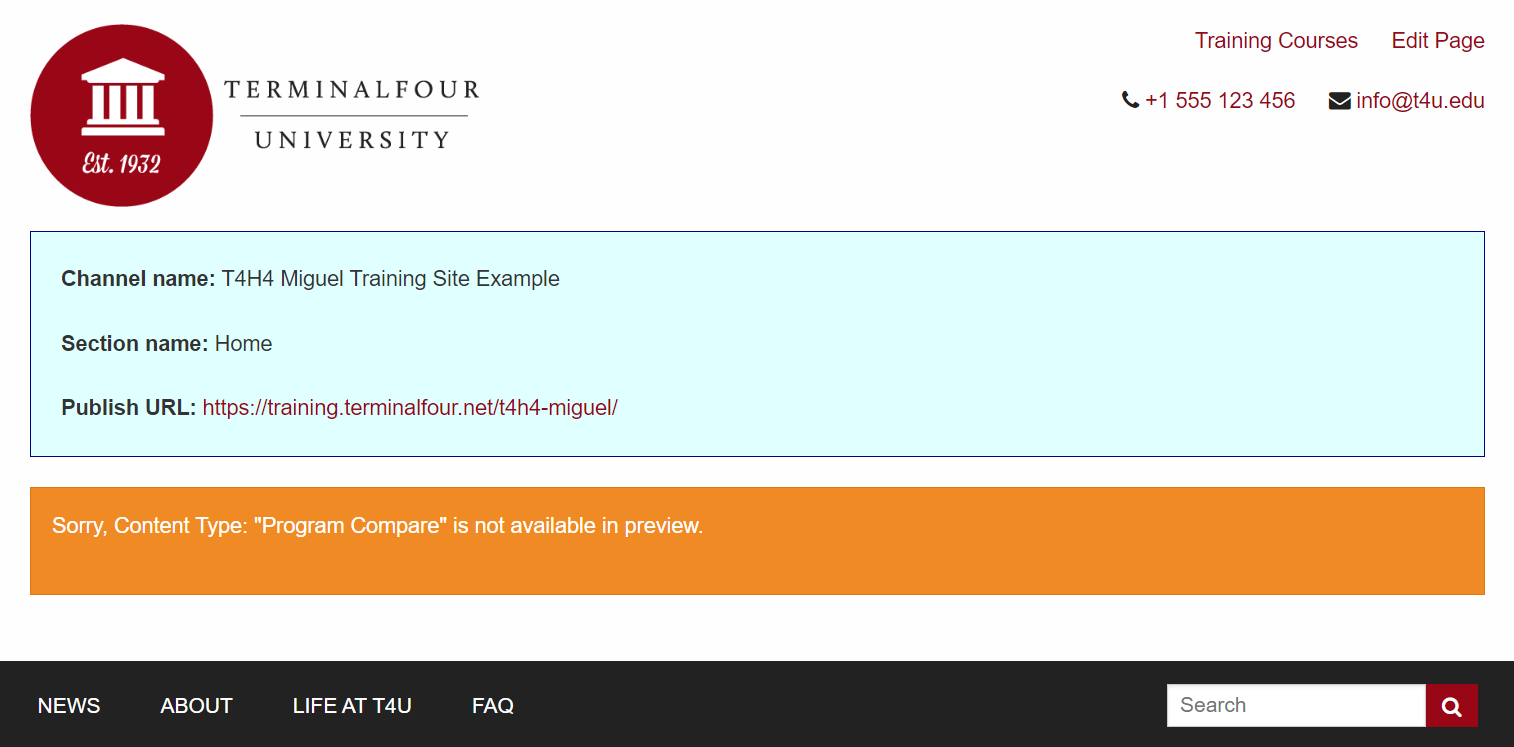
- You will learn how to use the preview Helper and how to output the channel name, section name and publish URL when in Preview.
How to use the preview Helper
- Go to Assets > Page Layouts.
- Click your page layout name to edit it. (Use the Filter tool to search).
- Open the </> Header code tab.
- Click on the </> Generate Handlebars Expression button.
- Open the </> Misc tab:
- Helpers: select preview from the Helpers drop-down.
- Click the Copy to clipboard button to copy the Handlebars expression. The Handlebars expression generated should look like the code below:
{{preview}}
<p>Only output in Preview and Direct Edit</p>
{{else}}
<p>Only output on the published page</p>
{{/preview}}
- Paste the code into your page layout.
- Click Save changes to save the changes to your page layout.
- Update your preview to check the result.
Displaying the channelName, sectionName and publishURL in preview
- Go to Assets > Page Layouts.
- Click your page layout name to edit it. (Use the Filter tool to search).
- Open the </> Header code tab.
- Click on the </> Generate Handlebars Expression button.
- Open the Channel tab:
- URLs: do not select
- Channel information
- Channel ID
- Channel Name (select the Channel Name)
- Channel Description
- Click the Copy to clipboard button to copy the Handlebars expression and paste into your page layout.
- To generate an expression that outputs the Section name click into the Section tab and select the Section name radio button.
- To generate an expression that outputs the Publish URL click into the Channel tab and select the Publish URL radio button.
- Add the new Handlebars code below to the Header code of the page layout.
{{#preview}}
<p><strong>Channel name:</strong> {{channelName}}</p>
<p><strong>Section name:</strong> {{sectionName}}</p>
<p><strong>Publish URL:</strong> {{publishURL}}</p>
{{/preview}}
- Click Save changes to save the changes to your page layout.
- Update your preview to check the result.
Styling the preview
- Copy the code below into your page layout.
<div class="row">
<div class="small-12 columns text-left hide-for-small-only" >
<div class="panel callout">
{{#preview}}
<p><strong>Channel name:</strong> {{channelName}}</p>
<p><strong>Section name:</strong> {{sectionName}}</p>
<p><strong>Publish URL:</strong><a href="{{publishURL}}"> {{publishURL}}</a></p>
{{else}}
<p><strong>This is the published Page.</strong></p>
{{/preview}}
</div>
</div>
</div>
<style>
.panel.callout {
background-color: lightcyan;
border-color: darkblue;
margin-top: 1rem;
}
</style>
- Click Save changes to save the changes to your page layout.
- Update your preview to check the result.
Adding a warning message to the preview
- You may want to display a placeholder "warning" message when in preview only, a possible use case is an alert informing of functionality that may not be available in preview.
- Let's add a warning message to the display. Copy the code below into your page layout.
<div class="row">
<div class="small-12 columns text-left hide-for-small-only" >
<div class="panel callout">
{{#preview}}
<p><strong>Channel name:</strong> {{channelName}}</p>
<p><strong>Section name:</strong> {{sectionName}}</p>
<p><strong>Publish URL:</strong><a href="{{publishURL}}"> {{publishURL}}</a></p>
</div>
</div>
</div>
<div class="row">
<div class="small-12 columns text-left hide-for-small-only" >
<div class="alert-box alert warning">
<p>Sorry, Content Type: "Program Compare" is not available in preview.</p>
</div>
</div>
</div>
{{else}}
<p><strong>This is the published Page.</strong></p>
</div>
</div>
</div>
{{/preview}}
<style>
.panel.callout {
background-color: lightcyan;
border-color: darkblue;
margin-top: 1rem;
}
</style>
- Click Save changes to save the changes to your page layout.
- Update your preview to check the result.