
Introduction to Handlebars
Handlebars in Terminalfour is implemented using handlebars.java, a Java implementation of the widely used handlebars.js templating engine. Because Handlebars is an open-source templating standard adopted by many frameworks and platforms, many developers are already familiar with its syntax and functionality. This makes it easier to create and maintain reusable templates within Terminalfour.
How Handlebars works
Instead of hard-coding values into your HTML, you create a template with Handlebars expressions. These expressions are enclosed in double curly braces ({{ }}).
For example, the template:
<h1>Hello, {{publish element="Name"}}!</h1>
<p>You have {{publish element="Message count"}} new messages.</p>
contains two expressions: {{publish element="Name"}} and {{publish element="Message count"}}.
When the template is run, Handlebars replaces each expression with the corresponding value from the data provided.
Key advantages of using Handlebars
- Separation of content and logic: Keeps HTML templates separate from application code, making projects easier to organize and maintain.
- Reusable templates: Supports partials and reusable components, reducing duplicated code and improving consistency.
- Easy to read and write: Uses simple placeholder syntax (
{{ }}), making templates accessible to both developers and non-developers. - Dynamic content: Automatically inserts data into templates, allowing the same template to generate different outputs.
- Extensible: Custom helpers can be created to add formatting and other reusable functionality.
- Improved maintainability: Changes to the layout or presentation can often be made in the template without modifying the underlying application logic.
What is a Helper?
A helper is a function that you can use within a template, such as a Page Layout or Content Layout, to perform a specific task, process data, or output a value. For example, helpers can format dates, convert text to uppercase, or display the contents of Content Elements.
Terminalfour includes a wide range of built-in helpers that you can use when creating Page Layouts and Content Layouts. These helpers simplify common tasks, reduce the amount of custom code required, and make your templates easier to maintain.
To learn about all available built-in helpers, see the Getting Started with Handlebars page in our Knowledge Base.
The Handlebars Expression Builder
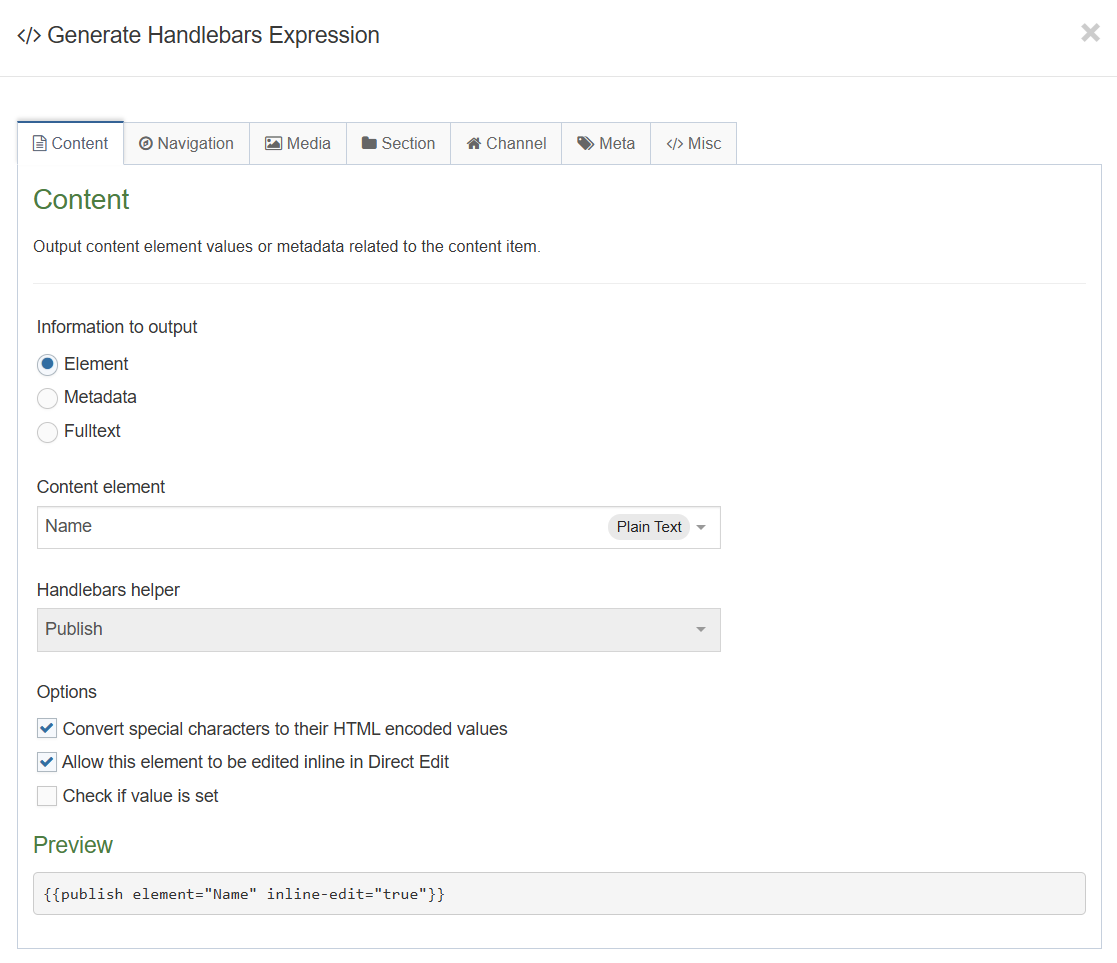
Terminalfour 8.4.2 introduced a new UI to help you generate Handlebars Expressions. The expression builder helps you generate the most commonly used Handlebars Expressions.
Handlebars Expressions can be added to Page Layouts and Content Layouts using the Generate Handlebars Expression button from Page Layouts and Content Types.
The "Generate Handlebars Expression" button is visible when the Layout Processor is set to "Handlebars".
Different types of expressions
An expression is any content enclosed within double curly braces ({{...}}). An expression can contain a variable, a helper, or a combination of both. During template rendering, Handlebars evaluates each expression and replaces it with the corresponding output in the final HTML.
Standard expression
{{publish element="Title"}}
{{sectionName}}
Block-level expression
A block-level expression is an expression that uses both an opening tag and a closing tag, similar to HTML tags, to define a section of content. The content enclosed within the block is processed according to the expression's logic. Block-level expressions are commonly used to control how content is rendered, such as by applying conditional logic, repeating content in loops, or executing custom processing for everything contained within the block.
{{#preview}}
<p>This will only get output when the page is previewed.</p>
{{/preview}}
Common use cases:
Conditionals
Display a value only when a specified condition is true.
{{#ifSet element="Heading"}}
<p>This is only output if the Heading element is set</p>
{{/ifSet}}
Loops
Iterate through an array and output data for each item
{{#each (list element="Department")}}
<p>Department name: {{name}}</p>
{{/each}}
Subexpression
A subexpression is an expression contained within another expression. Use a subexpression when you need to perform a helper function or calculation as part of a larger expression. Subexpressions are enclosed in parentheses.
{{upper (publish element="Title")}}
Double stashing and triple stashing
Handlebars provides two ways to output values in a template: double stash ({{...}}) and triple stash ({{{...}}}).
- Double stash (
{{...}}) automatically HTML-escapes the output. This means special characters, such as<,>, and&, are converted to their HTML-safe equivalents before being rendered. Use double stash for most content, especially user-provided data, to help prevent unintended HTML rendering. - Triple stash (
{{{...}}}) outputs the value without HTML escaping. If the value contains HTML markup, it is rendered as HTML rather than displayed as plain text. Use triple stash only when the content is trusted and is intended to include HTML.
Handlebars
Handlebars escapes HTML by default when using double-stash ({{ }}) syntax. Special characters like <, >, and & are converted to their HTML entity equivalents.
T4 Tags
Traditional T4 tags output content exactly as entered — no HTML escaping occurs. If a user enters <h2>Test</h2> into an element, that markup is output as-is and rendered as HTML.
Unlike Handlebars' double-stash, which escapes HTML automatically by default, T4 tags never escape anything unless you explicitly add a modifier. The relevant one is:
- htmlentities — Converts un-encoded special characters to their HTML equivalent (e.g. < → <), same outcome as Handlebars' default double-stash escaping.
- striptags — Removes HTML tags entirely (a different behaviour — not escaping, but stripping).
These are typically used together in a T4 tag like:
<t4 type="content" name="Heading" output="normal" modifiers="striptags, htmlentities" />
- Double-stash {{publish element="Title"}} → escapes the output. If the user entered <h2>Test</h2>, it renders literally as text <h2>Test</h2> on the page rather than as actual HTML.
- Triple-stash {{{publish element="Title"}}} → does not escape the output, behaving like a traditional T4 tag. The value <h2>Test</h2> would render as an actual <h2> heading.
Common use cases for triple-stashing
- If you need to output the data as HTML (for example, if you're using a HTML element)
{{{publish element="Main body"}}}
- If it's a Plain text element being used to output "Code" then you would use triple curly braces {{{ }}}.
{{{publish element="Code"}}}
- Outputting a file from the media library (images, css, javascript, etc.)
{{{media id="123" layout="css/*"}}}
Error handling
Like with standard T4 tag based layouts and programmable layouts it's possible to configure things incorrectly and get undesired or unexpected results.
Preview & Direct Edit
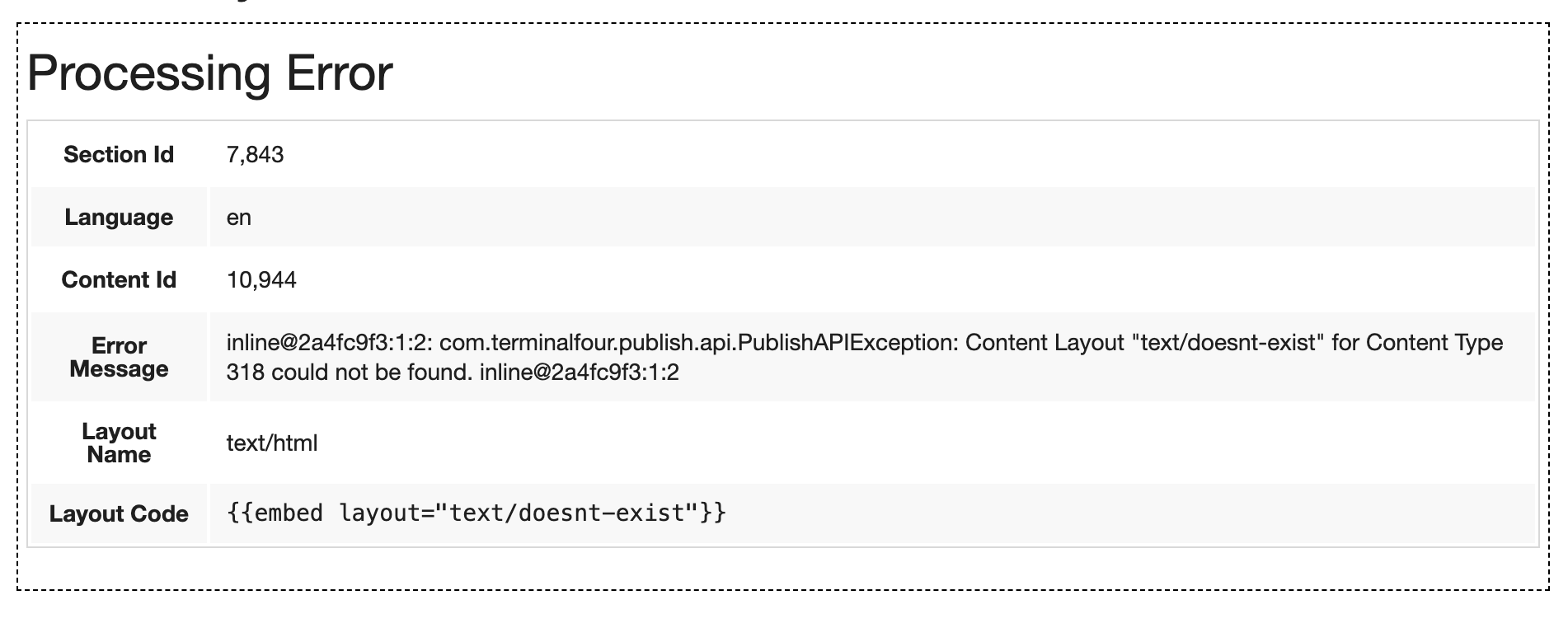
When an error is encountered with a Handlebars layout during Preview or Direct Edit we output an inline error message on the page to users.
This error is in the form of a table and displays the following info:
- The Section ID where the error is occurring
- The asset language
- The Content ID (if applicable)
- The error message
- The content layout name (if applicable)
- The layout code (if applicable)
This should give you enough information to find out where the problem exists so you can debug.
Example:
 Publish
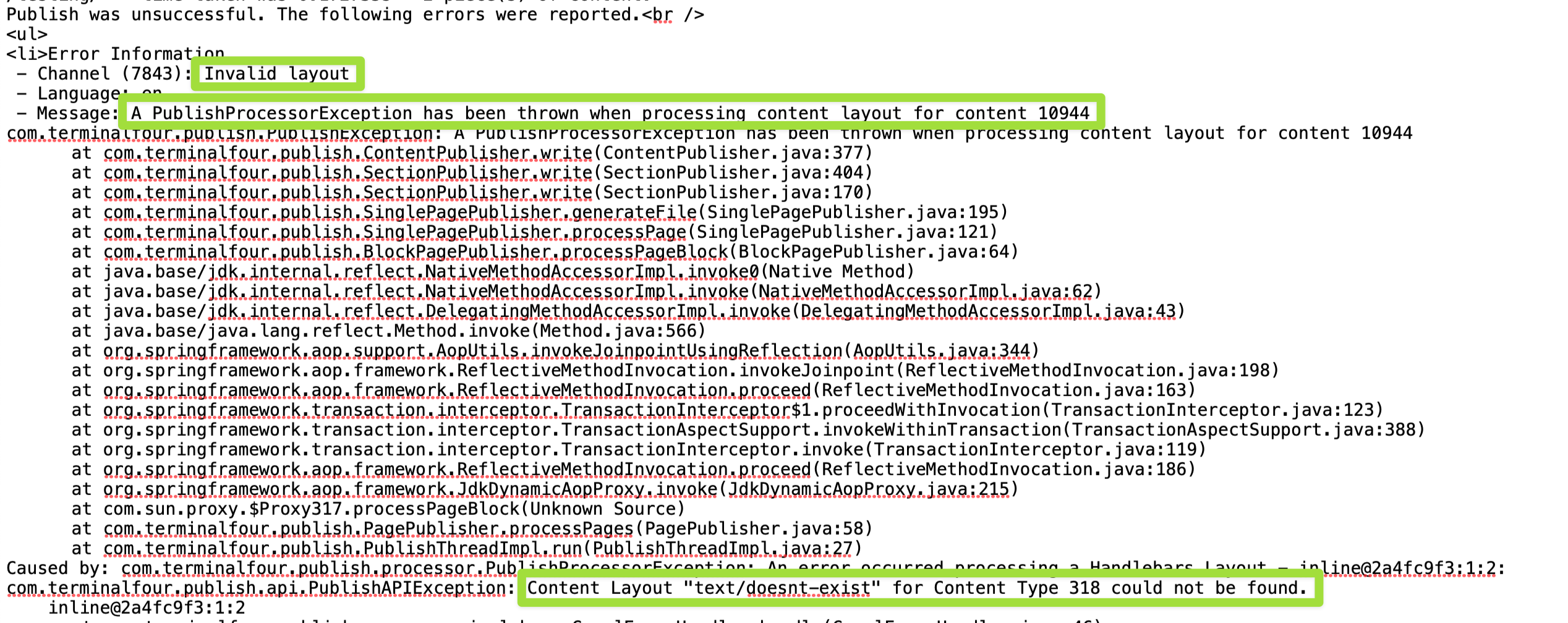
- When a Publish happens and an error is encountered:
- The publish stops to prevent breaking the live site.
- This means if you accidentally introduce a breaking error in your Content Type or Page Layout, we'll prevent that error from getting pushed to your live site and ultimately breaking a significant portion of your web pages.
- When the publish fails it does so with very clear messaging in the logs explaining the reason for the failure.
Example
Using the try helper
The try helper (available since Terminalfour 8.4.3) wraps a block of layout code so that if a Handlebars error occurs inside it, the error doesn't cause the entire Preview or Publish to fail. Instead, Terminalfour skips the failing block and continues processing everything after it.
By default, if an error is encountered anywhere in a layout, a publish will fail outright — this is intentional, so your live site doesn't break from Handlebars errors. Wrapping risky or "in-progress" code in a try block lets you safely continue developing new layouts without affecting your live publish.
Basic usage:
{{#try}}
{{/try}}
With error debugging (else block):
You can add an else block to output debugging info if an error occurs. Two special variables are available inside it:
- @error — details about the error that was encountered.
- @output — everything that was already processed in the try block before the error happened.
{{#try}}
{{else}}
{{/try}}
Terminalfour recommends using try particularly when working on new layouts where errors are more likely, since it prevents a small mistake from breaking the whole publish.
Related tip: for tracking down warnings/debug logs during development, there's also a captureLogs helper that outputs log messages inline — but this should be removed before going live.
Feedback survey
Congratulations on completing the Advanced Implementer Training module.
Please provide feedback in our on-line survey.