
Web content management
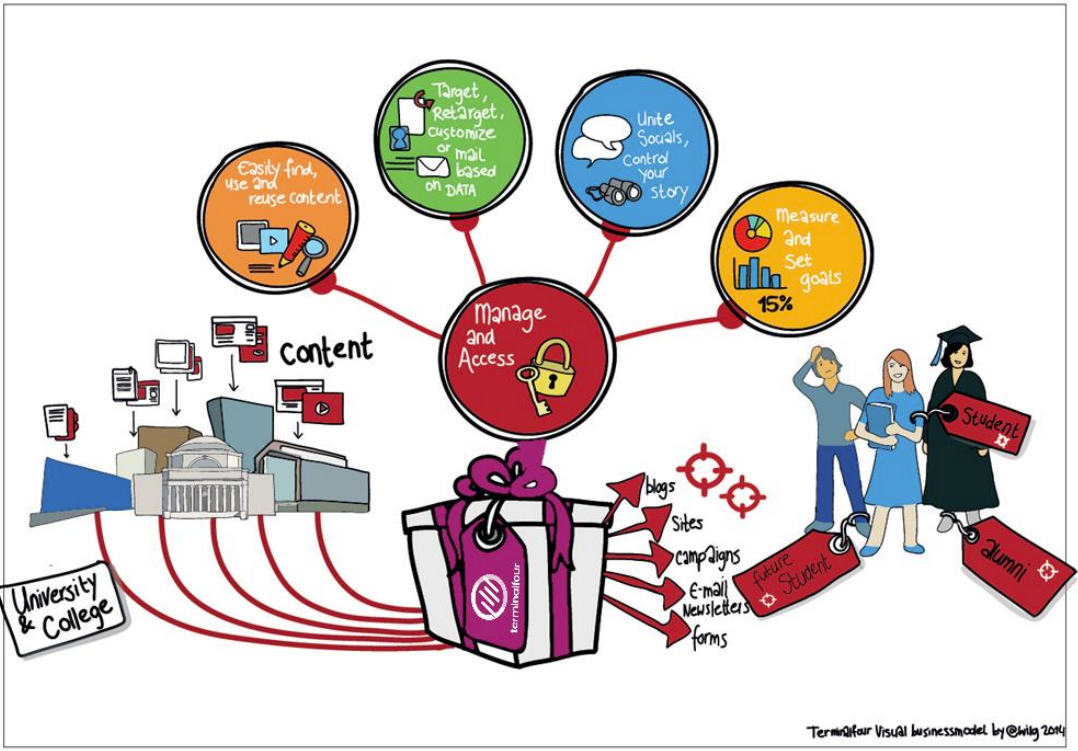
- At a basic level, Terminalfour is used for building and maintaining large amounts of digital content.
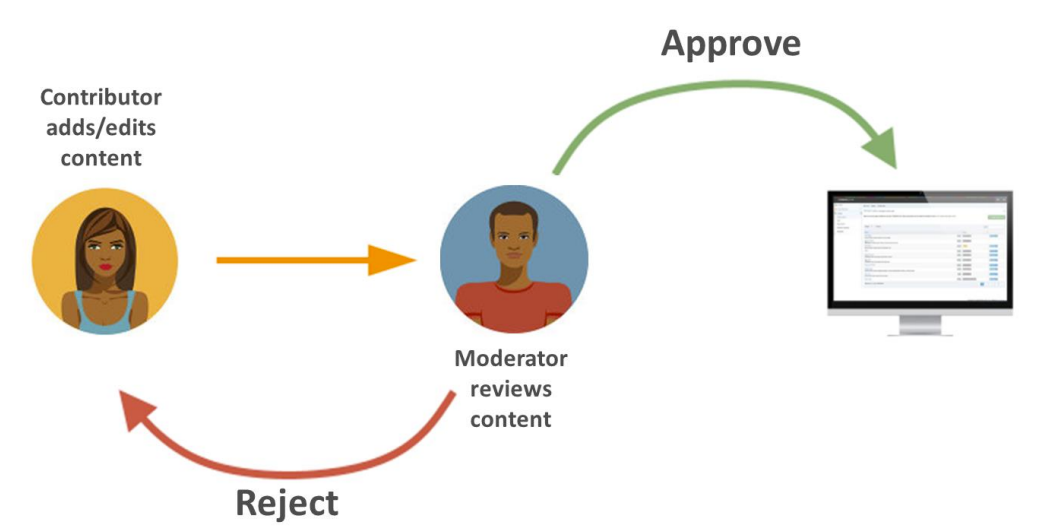
- Users at various levels can be given permission to add and modify content. All content goes through an approval cycle, at which point dedicated "approvers" review the content. In some cases, this may be the authors who wrote the content; in other cases, a more complex workflow may be used to allow several people to review the content.
- Once content has been approved, it is ready to "go live". This happens in the publishing process. Page layouts (header/footer) and content layouts are wrapped around the content to ensure the content is displayed correctly.
- One piece of content may be published to various channels. These are simply output mechanisms, like websites, mobile sites, paper publishing, etc. By applying the page layouts and content types, different displays can be achieved whilst still just producing one piece of content.
- At the publishing stage, external data can also be incorporated. This could be information from a database, website or similar.
Training facilities
Room set-up
The arrangement of the tables, chairs, equipment and lighting can impact the way your training will be received. How is the room set up? Will everyone be able to see you without straining? Does the seating arrangement allow for interaction? Try to move around the room to maximize interaction with the audience.
- Is the room large enough to accommodate the participants?
- Is a screen, projector and flip chart or white board available?
- Can all participants see the screen?
- Do all participants have a computer with access to the internet and TERMINALFOUR?
- Are the washroom facilities easily accessible?
- Is there adequate heating, cooling and ventilation in the room?
Number of attendees
For training to be effective it is important to be able to afford individual attention to attendees as and when required. For this reason it is suggested that you consider limiting the maximum number of attendees to ten for this type of training.
Training location
Whether training should take place in-house or not can always be discussed. An advantage of in-house training is that participants do not have to travel. A disadvantage is that they have easy access to their work station and can be distracted by work and perhaps lose focus on the training.
Training objective
What will your audience expect to gain from the training? What is the purpose of the training? Set out an agenda for the day and agree upon breaks and lunch times.
| Description | |
|---|---|
| Inform | At the end of the training, the audience will have a greater understanding of how Terminalfour works and how it impacts their work. |
| Persuade | At the end of the training, the audience will be familiar with the new Page Layouts and Content Types introduced and understand how to use them correctly. |
Dealing with participants' reactions
The following suggestions are provided to assist facilitators when dealing with participants who may experience difficulties with the changes required by the introduction of new knowledge and responsibilities:
| Reactions to change | Why? | What to do |
|---|---|---|
| Participants feel awkward, uncomfortable or even worried |
They do not know what to expect |
Give examples and provide as much information as possible |
| Participants complain about what they have to give up |
Change can involve letting go of responsibility |
Mention benefits of the change! |
| Participants feel they alone are having difficulties |
Change occurs on an individual basis, even if the change affects everyone |
Provide support and let them know who can help further |
| Some participants learn quickly, others do not |
Not all people accept change straight away |
Be non-judgmental and accepting. Let the informal leaders in the group lead |
| Participants are negative and do not want change |
People are concerned that they do not have the resources to do what is expected of them |
Indicate sources of support, resources to call, reference material |
| After the course, participants return to the ‘status quo’, to the way things were before |
It is normal to revert to the way things were because it is known |
Be there to support staff and check on how they are doing. Solicit questions and concerns |
Pre-training checklist
| Task | ✓ |
|---|---|
| Familiarize yourself with the material | |
| Identify and prepare slides you may want to use | |
| Identify, prepare and copy handouts | |
| Ensure you know your contact at the facility in case any problems arise | |
| Have extra paper and pens available for participants | |
| Terminalfour URL | |
| Terminalfour Login/password | |
| PC/Laptop for everyone | |
| Projector | |
| Flip chart and/or white board with pens |
User roles
There are 5 user roles in Terminalfour:
- Administrator
- Power User
- Moderator
- Contributor
- Visitor
Meet the team below:
Visitor Vinny
Hi, I’m a student at the University and a member of the library.
There’s a password-controlled area of the library’s website which I access using my student authentication details. I can keep track of my library account from there.
Contributor Carla
I work at the University library.
I don’t update content very often, but when I do I like to use Direct-Edit as it’s easy to update the content. I have a moderator check my work before it gets published.
Moderator Mike
I also work at the library.
Content that Carla and other Contributors create comes to me and I decide what gets published.
I have permission to add new pages to the website when needed.
Power User Pete
I oversee the library website.
I can add content, but my main duties are to look after the look and feel of the library site, I can change the page layouts and create/edit content types for the Contributors and Moderators to use.
Administrator Ann
I oversee all the Websites here at the University.
My duties are like Power User Pete’s, but I get to oversee all the websites and have access to all areas within Terminalfour.
User rights
- The default rights of each user type are detailed below.
- Some rights and roles are customizable by going to:
Administration > User Rights & Roles > Role Customization
| Action | Contributor | Moderator | Power User | Administrator |
|---|---|---|---|---|
| Add/Modify/Delete Content | ✓ | ✓ | ✓ | ✓ |
| Manage Site Structure | ✓ | ✓ | ✓ | |
| Approve/Reject Content | ✓ | ✓ | ✓ | |
| Modify User Profile | ✓ | ✓ | ✓ | ✓ |
| Purge Content | ✓ | ✓ | ||
| Manage Users | ✓ | ✓ | ||
| Manage Groups | ✓ | ✓ | ||
| Assign Rights to Contributors | ✓ | ✓ | ✓ | |
| Assign Rights to Moderators | ✓ | ✓ | ||
| Assign Rights to Groups | ✓ | ✓ | ||
| Manage Channels | ✓ | ✓ | ||
| Manage Page Layouts | ✓ | ✓ | ||
| Manage Content Types | ✓ | ✓ | ||
| Manage Navigation Objects | ✓ | ✓ | ||
| Manage Languages | ✓ | ✓ | ||
| Manage Workflows | ✓ | ✓ | ||
| View Audit/Error Reports | ✓ | |||
| Configure Terminalfour | ✓ | |||
| Publish Content | ✓ | ✓ | ✓ |
Who are you training?
- There are 5 different user roles in Terminalfour; this training assumes that you will be training Contributors and Moderators.
Contributors and Moderators
At the end of this training course you will be able to train both Contributors and Moderators. It is important to know the roles of each of these user types, as this will guide the content that is covered in your training session.
| Task | Contributor | Moderator |
|---|---|---|
| Add content | ✓ | ✓ |
| Modify content | ✓ | ✓ |
| Delete content | ✓ | ✓ |
| Add files to the media library | ✓ | ✓ |
| Add pages | ✓ | |
| Modify pages | ✓ | |
| Delete pages | ✓ | |
| Approve content | ✓ | |
| Publish content | ✓ | |
| Assign rights to contributors | ✓ |
- Tailor your training sessions based on the needs of your audience.
- If possible train Contributors and Moderators separately.
- Invite your trainees to bring examples of content along to the training session.
Log in
When a new User is created, they are assigned a unique username and password within Terminalfour. Single sign-on through directory services such as LDAP, SAML, Kerberos and CAS is also supported.
- Log in to Terminalfour.
- Open your user profile by clicking on Welcome in the black bar at the top right
- To modify the profile, click Profile.
How to log in
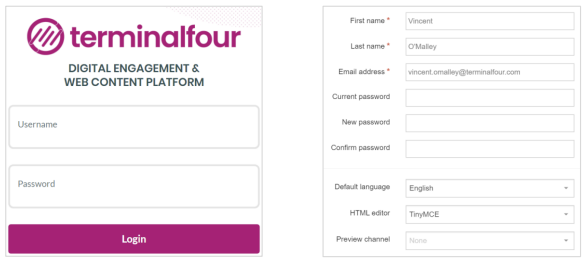
- Open a web browser and navigate to your Terminalfour installation.
- Enter your username and password; then click Log in.
- Terminalfour opens. Click on your username in the top right corner to open your user profile:
- You can change your Password.
- If more than one Language is available, you can change the language. This will change the language of the site you work on when you log in.
- You can select your preferred User Interface Language. This is used to set the interface language of Terminalfour; menu items, site structure and user options.
- You can update your Email Address; this is used for notifications sent from Terminalfour.
- If more than one HTML Editor is available, you can change editor. The default is TinyMCE.
- If more than one Preview Channel is available, you can set a default channel. This is used when you preview your content to see how it will look on the live site.
Download training material
- Training material for this course can be downloaded from the Training area of the Terminalfour Community.
- Terminalfour Community is your source of all information about Terminalfour.
- Being part of the Terminalfour Community gives you with access to all training material, documentation about the product, and the T4 discussion forum.
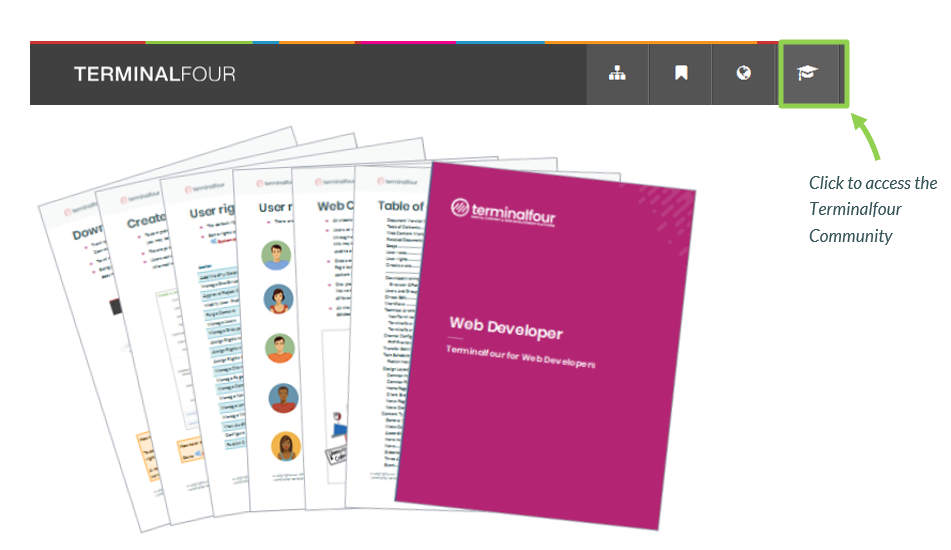
How to download training materials
- To access the community area, click the Terminalfour Community icon located towards the top right of the interface.
- A new tab opens up, if this is your first time accessing the community area you will need to agree to the terms of use. Check the box to agree to the terms and click Access community.
- Your trainer will show you where to download the materials required for this course.
Set up a training area
- It is recommended that you set up a training environment instead of using the live site for training. This can be done within the existing installation of Terminalfour and can use the same Content Types and Page Layouts to make it as realistic as possible.
- Remember to give your Training Site a “Pending” status so that it won’t be published on your live site.
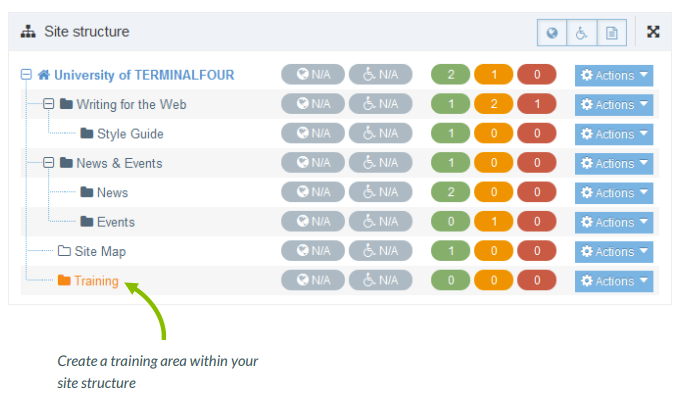
How to set up a training area
- If desired, you can set up a new channel for training and build the Site Structure within that.
- Alternatively, within the site you want to use, create a new section for training and ensure it has a Pending status. This will ensure that it does not publish at any point.
- Assign Page Layouts and Content Types to the training section based on what you want the trainees to use.
- Set up users/groups and give them edit rights to the Training area of the Site Structure.
Set up training users and groups
- To be able to control what users will access for training, it is a good idea to set up a training group and some training user ID; alternatively, you may wish attendees to use their own accounts. If Content Types are global, the users will still be able to use those. Otherwise you will need to share the Content Types with your Training group.
- The steps below explain how to create a new user in Terminalfour.
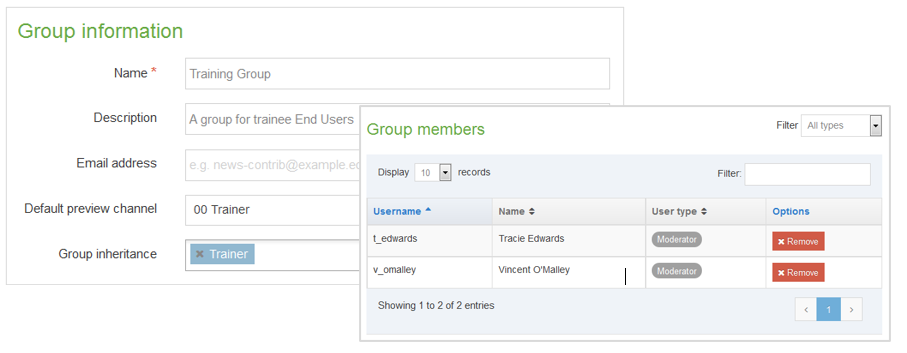
How to set up users and groups for training
The following steps will need to be completed by an Administrator user.
- Go to Administration > User Rights & Roles > User Management.
- Click + Add new user and fill in the relevant information:
- First name: enter the user’s first name.
- Last name: enter the user’s last name.
- Username: enter a username.
- Password: enter a password of a minimum six characters.
- Confirm password: confirm the password by entering it again here.
- Email address: enter the user’s email address. This is used for alerts and notifications.
- User type: sets the user level. This restricts access to parts of Terminalfour based on the user level.
- Default language: sets the language for the Terminalfour user interface.
- HTML editor: select the editor you wish to use for HTML elements. Depending on your set-up, several may be available.
- Preview channel: select a channel the user works within, if possible. If no default Channel is set at all, the user is prompted to select the desired Channel whenever previewing content.
Community access
T4 community:
Select End User access or Administrator access if you wish for the user to have access to the Terminalfour Community.
End User access gives restricted access.
Authentication methods
Configure authentication methods available for this user:
If your users are managed externally you can configure the relevant authentication method here.
More information can be found in the Terminalfour Community.
- Click Save changes to save the details.
- The user has now been created and can log in. The user needs to be assigned to the relevant part of the Site Structure, i.e. the Training section created earlier.
Edit rights
- Administrator users by default have edit rights to the entire site structure. All other user types need to be given edit rights.
- Give your users/groups the right to edit your site structure.
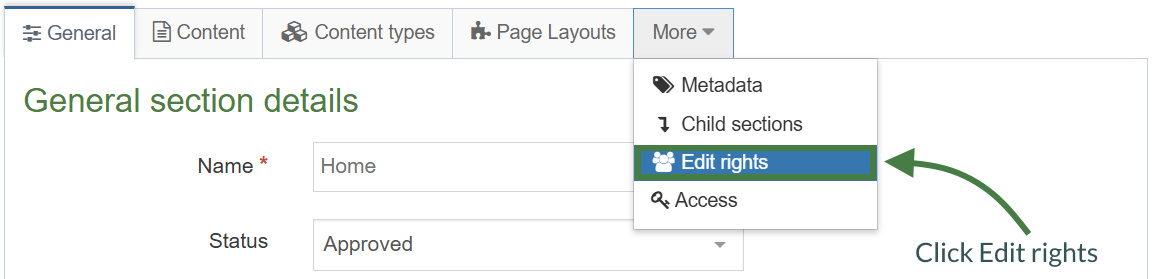
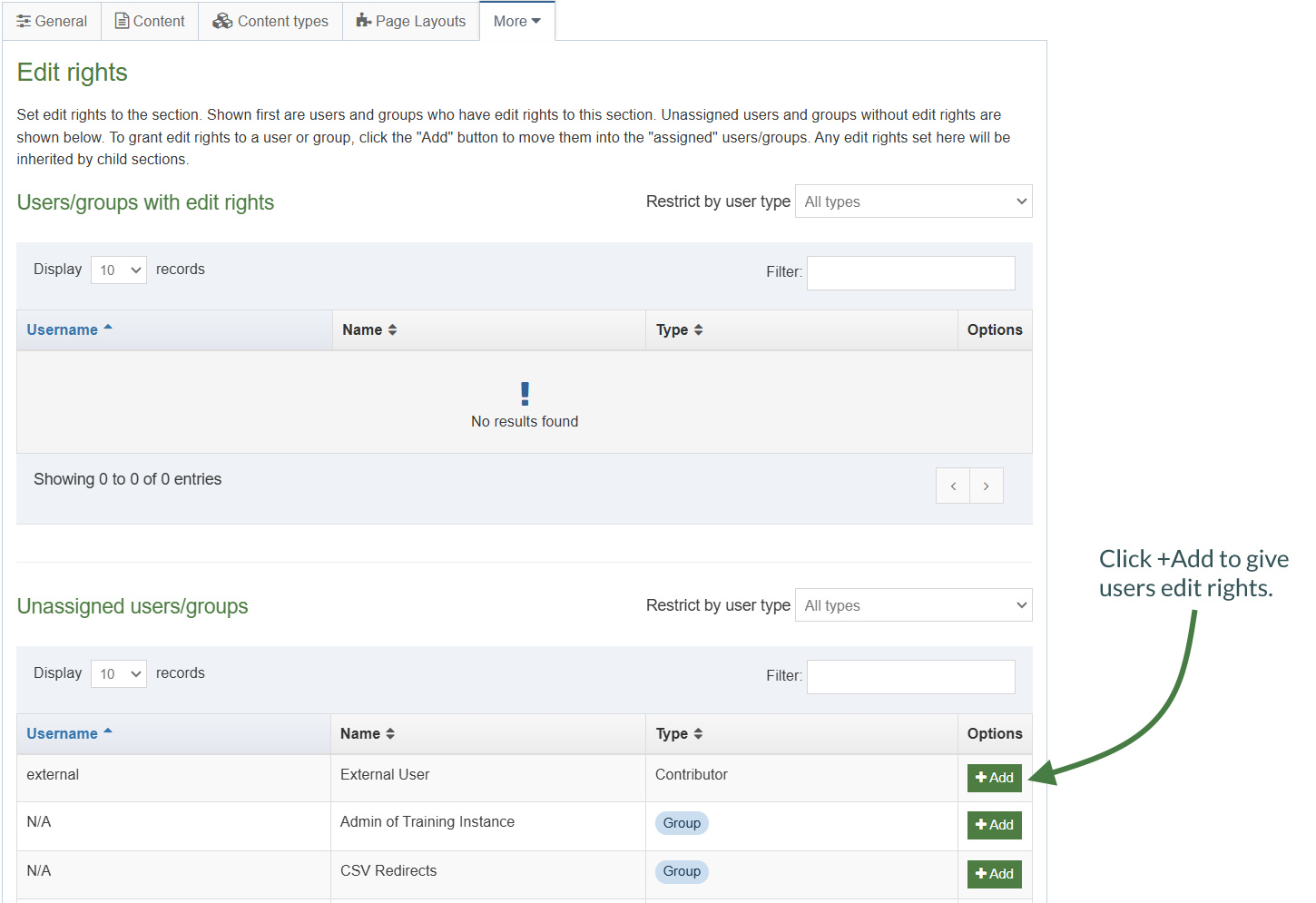
How to assign edit rights
- To give a user or group edit rights, go to the Site Structure, and click on the relevant section.
- Expand the More tab and click Edit rights.
- Use the Filter to find the relevant users or groups.
- Click +Add beside the users/groups you want to give access to the Section.
- Click Save changes.
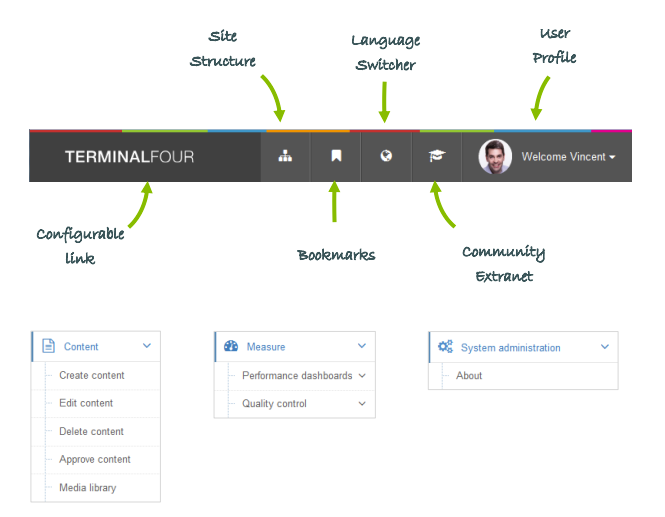
Terminalfour interface
- The Terminalfour interface has been designed to be fully responsive, which means it can be used on a desktop, laptop, tablet, and/or mobile device.
- Familiarize yourself with the interface.
Site structure
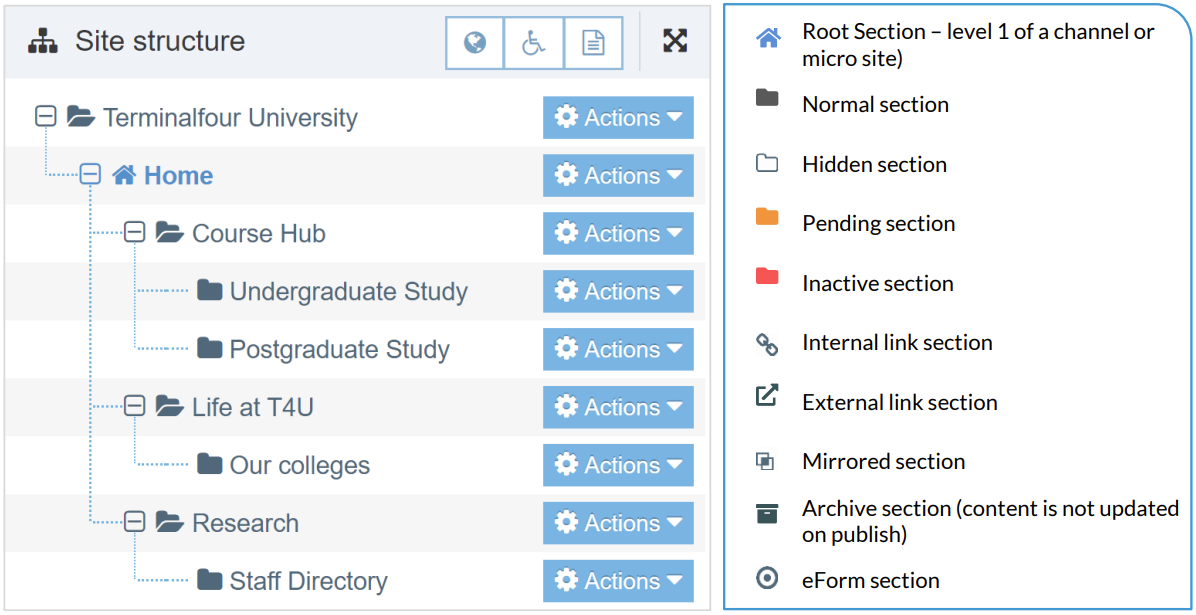
- The first part of building a website is identifying at least the high-level architecture. In Terminalfour this involves building a site structure consisting of sections.
- There are many types of Section, and each type has an icon so you can identify it.
- Once the different options have been explained by the trainer, build a small site structure you can use as a foundation for your new website.
How to create sections
- On the Site Structure screen, locate the section under which you wish to add your first section. Click Actions > Create section.
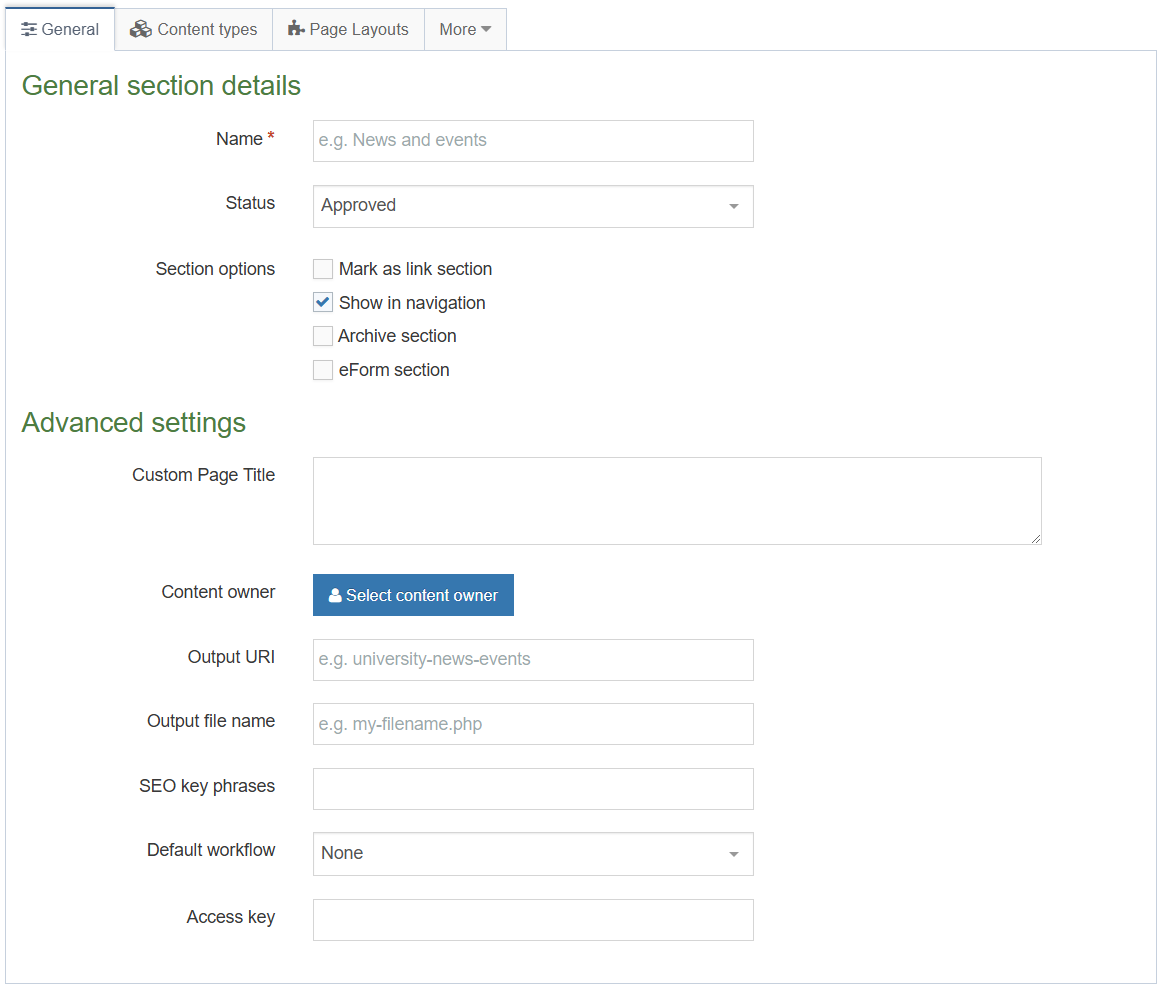
- Enter the relevant information to create a section. As a minimum, the Name must be filled in. All other default options are explained on the next page.
- Click Save changes to save the section.
- Repeat the steps above to add additional sections. Section information can be modified at any stage.
General Section Details
When creating sections, the only required element is Name. Additional elements are described below:
Name: This is the name of your section and is typically used in the menu navigation and forms the basis of the URL for the published page (if an Output URI is not specified).
Status: There are three status levels:
Approved: Sections are published when they have at least one approved Content Item.
Pending: Pending Sections will not publish, even if the content within the Section is Approved.
Inactive: Deleted Sections have an Inactive status. Sections can be restored by changing the
status to Approved.
Mark as link section: Link Sections contain no content and instead link to another Section in the Site Structure or an external URL.
eForm section: This option is used if you want to submit an eForm. Refer to the documentation for eForms for further details.
Advanced Settings
It should be noted that depending on your Section metadata content type, more fields may be available at the top of the Advanced settings. These fields are installation specific and hence not covered here.
Custom Page Title: This is an example of an installation specific element, added using the Section meta content type. This element is not used in this T201 training.
Content owner: Select the Content Owner from the list. If left blank, it will inherit from the parent section. The content owner can be used in workflows or get notified when content expires.
Output URI: Lets you specify the Uniform Resource Identifier (URI) as the destination of the new Section. Using this field improves the Search Engine Optimization (SEO) for this Section. Otherwise, with the field left blank, the Section's name is used when publishing.
Output file name: Specify the file name used for the page. When you leave this blank, the system uses the default file name configured in the Channel Settings.
Want to hide this option from your users?
Go to Administration > Hierarchy & Content Settings > Hierarchy > Enable output to filename
Default workflow: The default Workflow for this Section's content.
Access key: You can enter a single character which is used as a shortcut within a Link Menu Navigation Object.
Move and reorder sections
- Sections can easily be moved, and the order in which they appear in navigation will change to reflect this.
- Move one of your sections, using the drag and drop method.
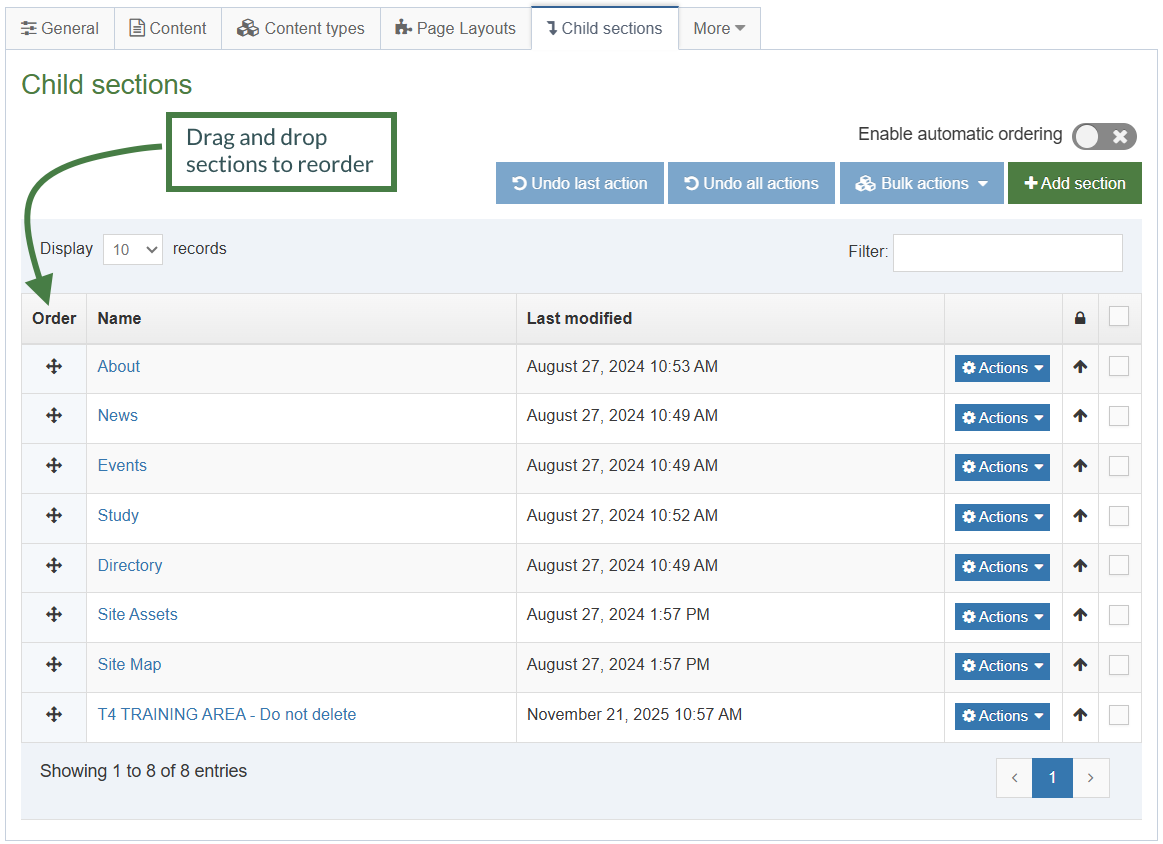
- Reorder the sub-sections you created earlier. Use either automatic ordering or move them manually.
How to move and reorder sections
- To move a section, drag it with your mouse and drop it to the new location.
- Click Confirm to save the change to the site structure.
- To reorder sections, click the Site Structure icon.
- From the Actions menu select Edit section.
- Select the Child sections tab.
- If you wish to use automatic ordering, slide the Enable automatic ordering toggle to the on position and select a method. By default, all sections are locked. Unlock the sections you wish to apply automatic ordering to. To do this, use the Unlock option in the Actions menu.
- If you wish to manually move the sections, use the Order icon to move sections around.
- Click Save changes before navigating away from this screen, as the changes will otherwise not be saved.
Bookmark sections
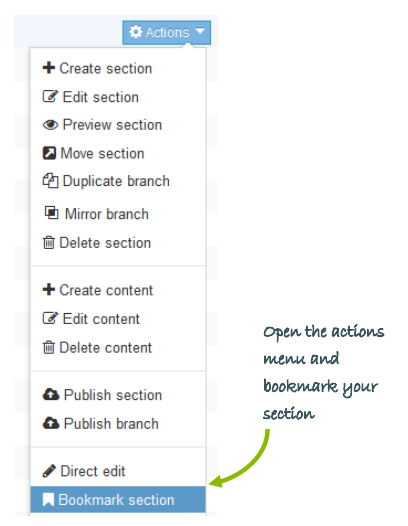
- The bookmark tool allows you to add your favorite sections to a bookmark list.
- Bookmark one or more of your sections.
How to Bookmark Sections
- Select Bookmark section from the Actions menu beside the section you wish to bookmark.
- Check the bookmarks tool to see that your section has been added as a bookmark.
- Sections in Terminalfour can also be bookmarked, by clicking on Bookmark icon located towards the top righthand-side of the screen.
Add content
- Content is added to a section by using Content Types.
- Add content to one of your sections using the generic content type (the trainer will point out the name).
- Preview the content to ensure it looks OK.
- Add the content or save as draft.
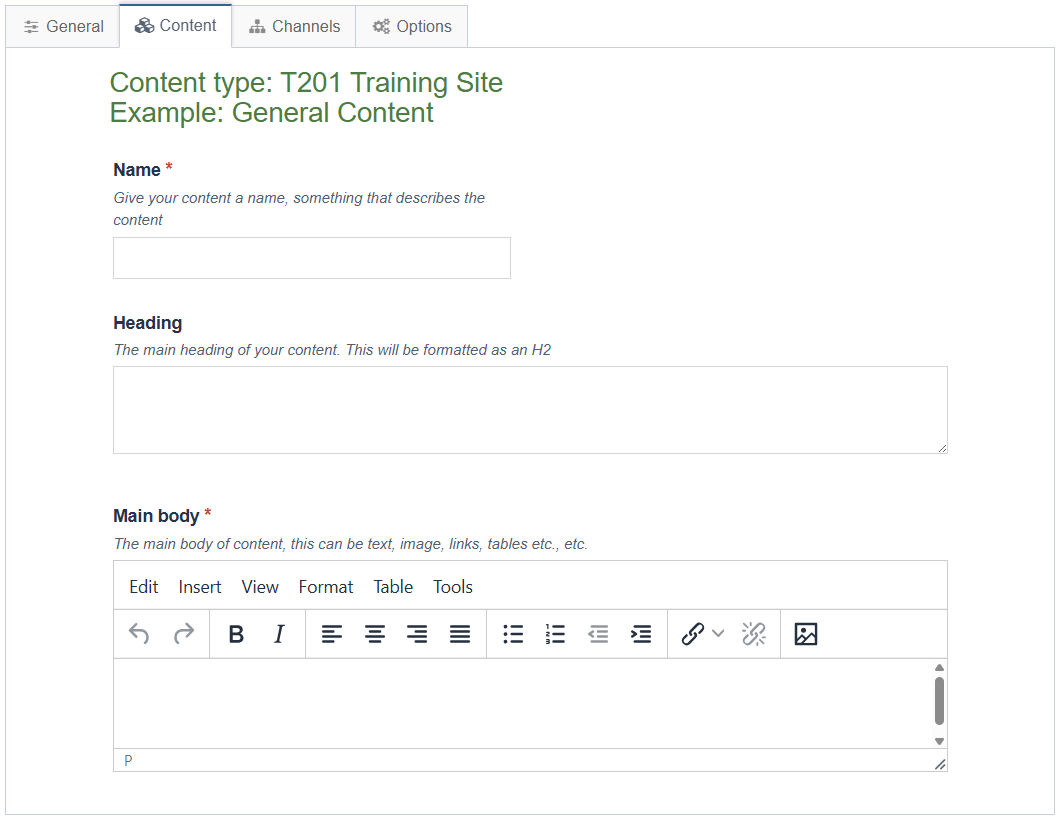
How to add content
- Select Create content from the Actions menu beside the section you wish to add content to.
- If only one content type is enabled, this will open right away. Alternatively you need to select the content type you want to use.
- The * next to the element identifies that the element is required.
- Enter a Name for the content. This will not be displayed on the published page, but simply act as a name within Terminalfour and allows for user organization.
- Use the Word file "Writing for the Web" and create a piece of content which looks as similar as possible to the original.
- Open the Word file given to you by the trainer and copy the text.
- Paste the text into the main body of your content. Some formatting may be necessary.
- Preview to ensure you are happy with the result.
- Click Save changes to save the content once complete, or expand your options by clicking on the icon next to Save changes to reveal options such as Save & approve and Save as draft. The drop-down menu options may vary depending on configuration.
Direct edit - links
- There are numerous ways to add and modify content in Terminalfour. This time we are going to use Direct Edit to add a new piece of content, with internal and external links.
- Open Direct Edit and add a new piece of content on the same page you added the "Writing for the Web" content to.
- Include a link to an external website (e.g. http://www.terminalfour.com), a link to one of your other sections (e.g. "News") and a link to another attendee’s "Writing for the Web" content.
- Create an anchor link navigating from the bottom of the content back to the top.
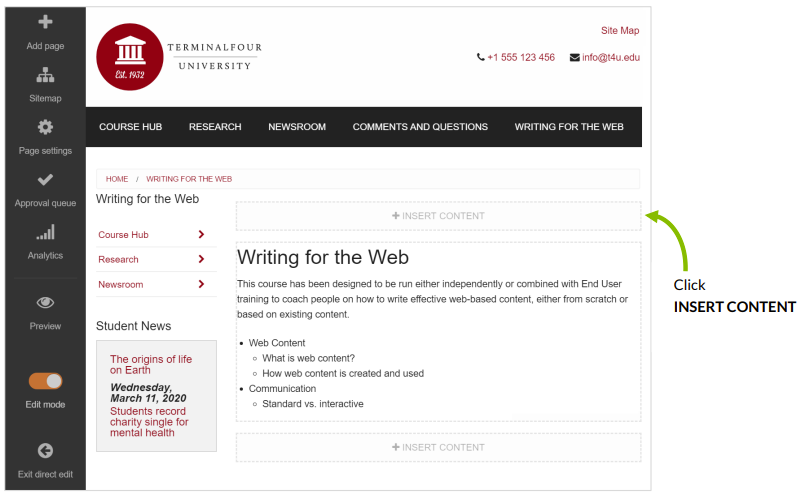
How to use direct edit
- From the Site Structure screen, select Direct Edit from the Actions menu beside the section you just added content to.
- A Direct Edit screen opens with dotted line surrounding any content for which you have editing rights and a Direct Edit menu is displayed to the left of the screen.
- Click Insert content to begin adding new content to the page.
- Select a Content Type.
- Enter a Name for your content – we will now create a number of links.
How to add links
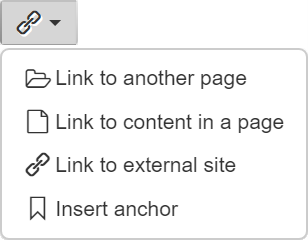
- External Link: e.g. http://www.terminalfour.com.
- Type the text you wish to use as your link text; e.g. Terminalfour.
- Highlight the text; then select Link to external site from the WYSIWYG.
- The Link to external site Window opens; complete the details as required.
- URL: enter the URL of the site you wish to link to.
- Text to display: enter the link text here.
- Title: enter information about where the link will send the user; this will aid user accessibility.
- Target: select how the link should open, e.g. within the same window or in a new window.
- Link to another page: e.g. to one of your other sections.
- Type and highlight the text you wish to use as the link text or simply place your cursor where you want the link inserted. Select Link to another page from the WYSIWYG.
- A window will pop up displaying the Site Structure; navigate to the section you wish to link to and click on it.
- Link to content in a page: e.g. to another attendee’s "Writing for the Web" content.
- Type and highlight the text you wish to use as the link text or simply place your cursor where you want the link inserted. Select Insert Content Link from the WYSIWYG.
- A window will pop up displaying the Site Structure; click on the section that contains the content you wish to link to; a list of content will be displayed.
- Click on the name of the content item you want to link to.
- Click Save changes to save the content once complete.
- Preview your content to review your links.
Tables
- Tables are sometimes used to arrange information within your content to make it easier to read.
- Create a piece of content in one of your empty sections.
- Create a table similar to the one below.
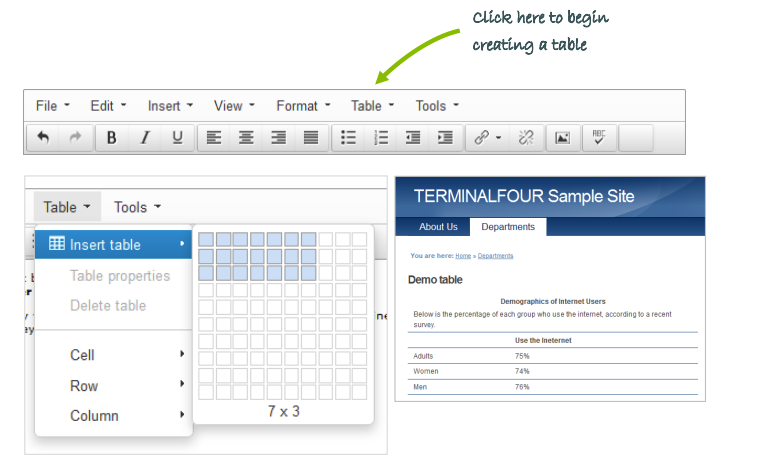
How to add a table
- From the Site Structure screen, select Create content from the Actions menu beside the section you wish to add content to.
- If only one content type is enabled, this will open straight away. Alternatively you need to select which content type you wish to use.
- Enter a Name for the content. This will not be displayed on the published page, but simply act as a name within Terminalfour.
- In the Main body, click Table from the WYSIWYG and create a table.
- When finished, click Save changes to save your work.
History and versions
- Terminalfour allows you to see all changes made to content, compare different versions and set previous versions of the content live.
- To see how this works, modify a piece of content; then compare the two versions of the content.
- Set the original version of the content live again.
How to review history and versions
- Modify a piece of content: select Edit content from the Actions menu beside the section containing the content.
- Click the content’s name to open it or select Edit from the Actions menu.
- Make changes to the content and click Save changes.
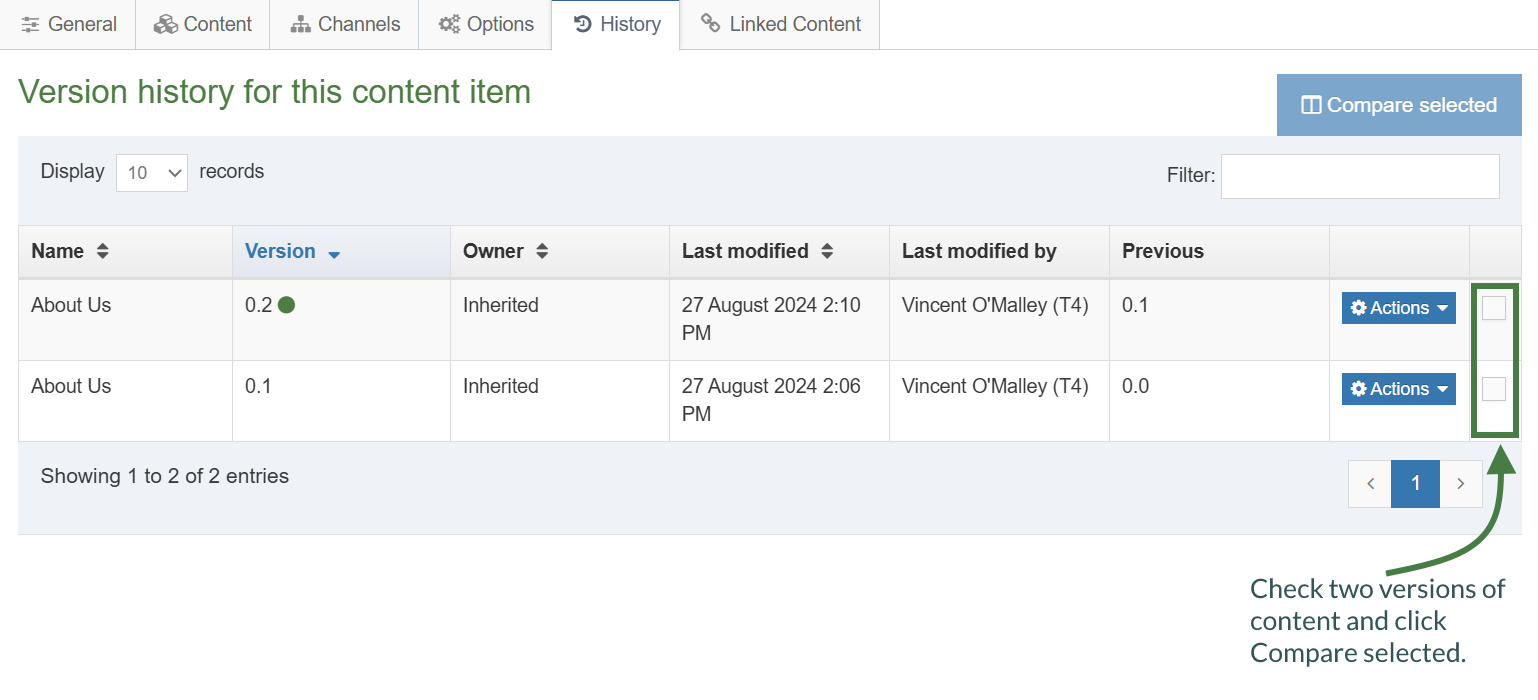
- Click back into the content and go to the History tab or select History from the Actions menu beside the content.
- Select the two versions of content you wish to compare by checking the box for each version (located in the far right column).
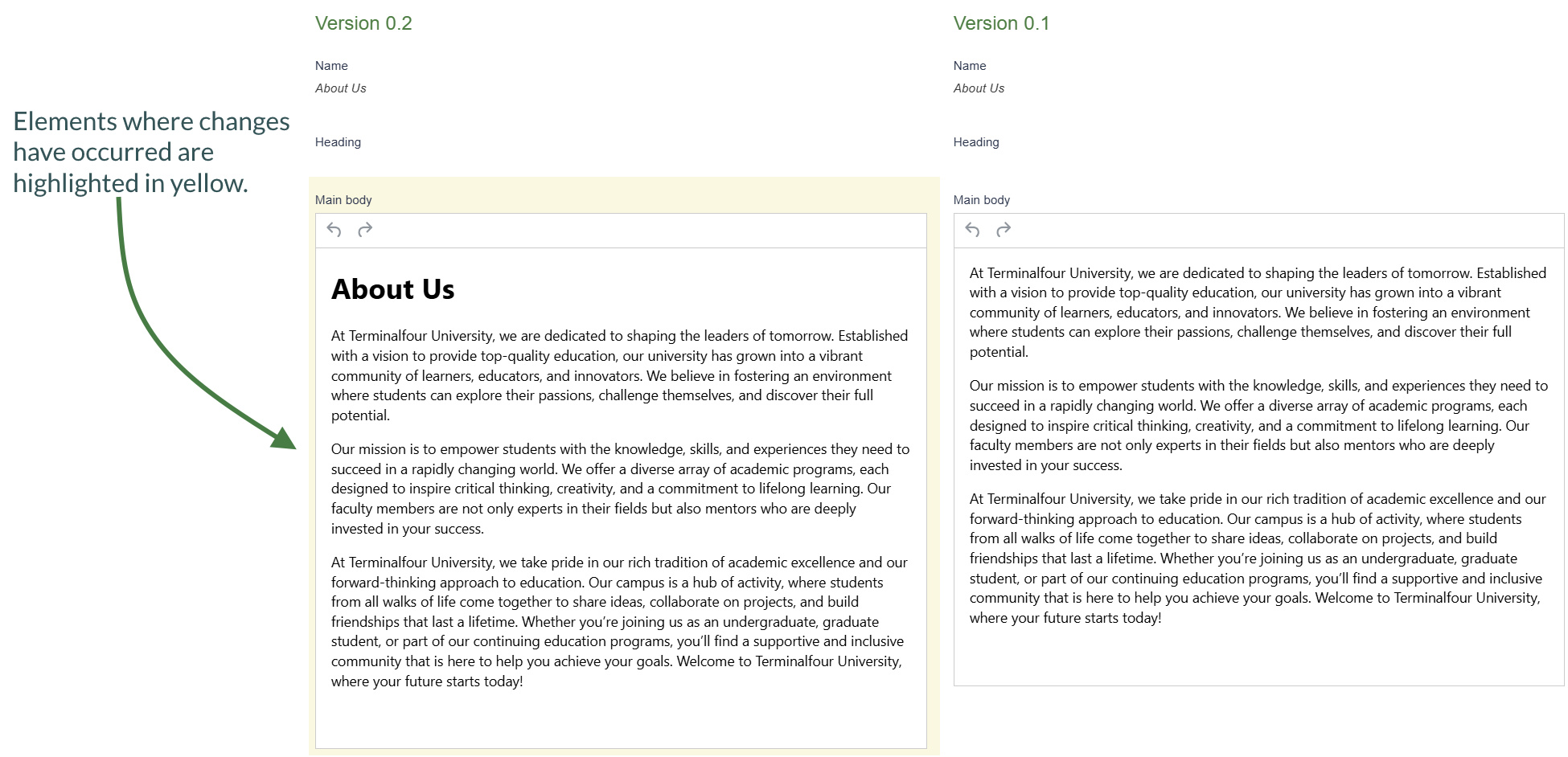
- Click Compare selected to display both versions of content in a side-by-side comparison; elements where changes have occurred are highlighted in yellow.
- Click Back to return to the History tab.
- You can set any version as the current version by clickingActions > Make current > Confirm.
Content options
- When adding a new piece of content or modifying an existing piece, there are additional options available to control and manage the publishing of the piece of content.
- The content options can be used to manage when the content will publish, expire, be reviewed, and archived. All the fields are optional.
Content Options
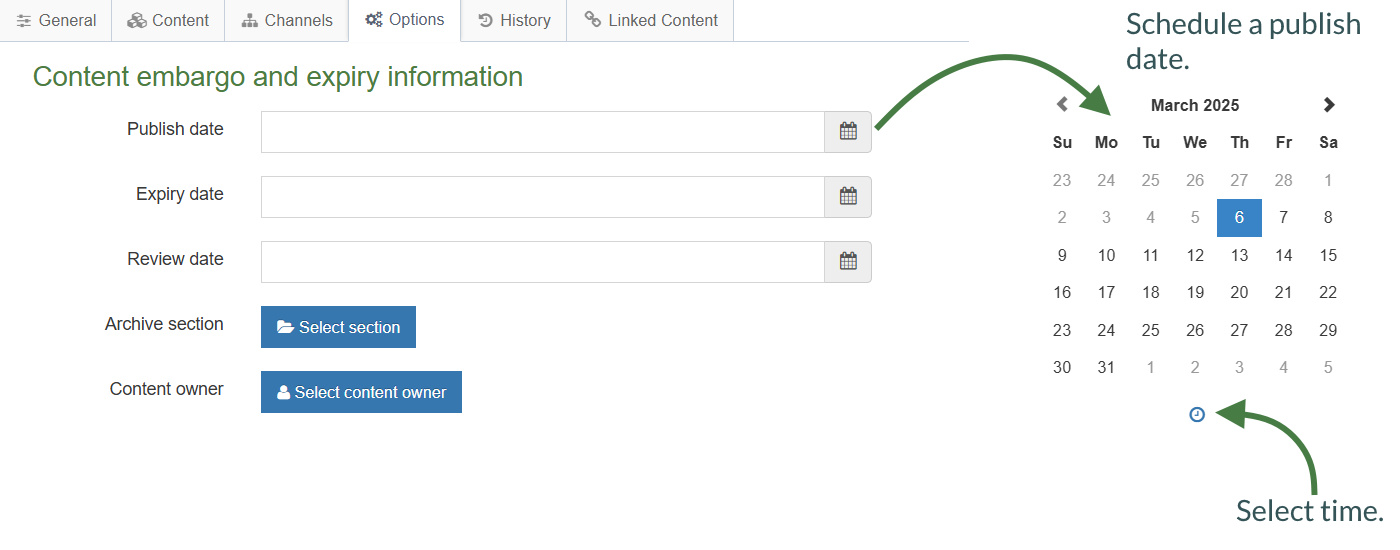
Publish date: schedules a publish date, i.e. the date the content will go live on the site. The content has to be approved before it can be published.
Expiry date: content will expire and be removed from the site.
Review date: Terminalfour will email the Content Owner on the selected date. If no owner is set, the person who last modified the content will be notified instead.
Archive section: allows you to specify a section for the content to go to once it has expired. If you are publishing lots of content, it may be a good idea to create an Archive Section to store expired content in. This way the content can be used and published again later. Click Select section and select a section; the section id is inserted as a reference.
Content owner: sets an owner to the Content Item.
How to manage content options
- To modify a piece of content, select Edit content from the Actions menu beside the section containing the content.
- Click on the content’s name to open it.
- Click the Options tab.
- Fill in the relevant fields by clicking the box to open the calendar; simply click on the date you wish to use and adjust the time by clicking the clock icon and selecting the hours and minutes. If you do not set the time, it will default to the current time.
- Click Save changes to save your work.
Media library – training area
- It is recommended that you set up a training area within the Media Library instead of using the live site for training. This can be done within your existing Media Library to make it as realistic as possible.
- It is possible to assign read and write access to different users/groups.
Media library overview
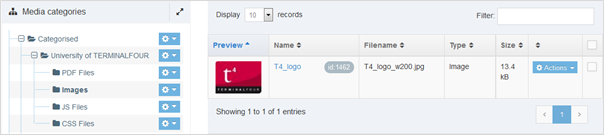
- The Media Library can be accessed either as a separate item (go to Content and select Media Library) or directly from a piece of Content.
- By default, only Administrators have write access, and all user types have read access.
- It is possible to add additional categories to the Media Library.
- If you modify a Category, you can determine the Write Access, Read Access, Workflow, Media Categories (manual and automatic ordering), Auto Publish and Access Control.
- The Add Media button allows you to add new media items to the category you have selected.
- You can Search for an item by entering keywords or an ID.
- You can Filter results by typing into the Filter tool.
How to set up a media library training area
The following steps will need to be completed by an Administrator user.
- To add a Category, go to Content and select Media Library.
- The Media Library opens; click on the Actions button beside the category you want to add a new Training category to.
- Give the new category a name, e.g. "Training".
- The new category will be added to the Media Library.
- Click the Actions button beside your new Training category and click Edit category.
- Select the Access Tab and click Write access.
- Add the user(s) or group(s) you want to give write access to the Training category.
- Click Save changes to save the details.
- Members can be added and removed at any point.
Media library overview
- The Media Library is used to store files of all sorts to use in content. You may not have access to uploading new files – this depends on your user credentials.
- Open the Media Library and locate the training category.
- Add a category with your own name; then upload the image you have been given by the trainer.
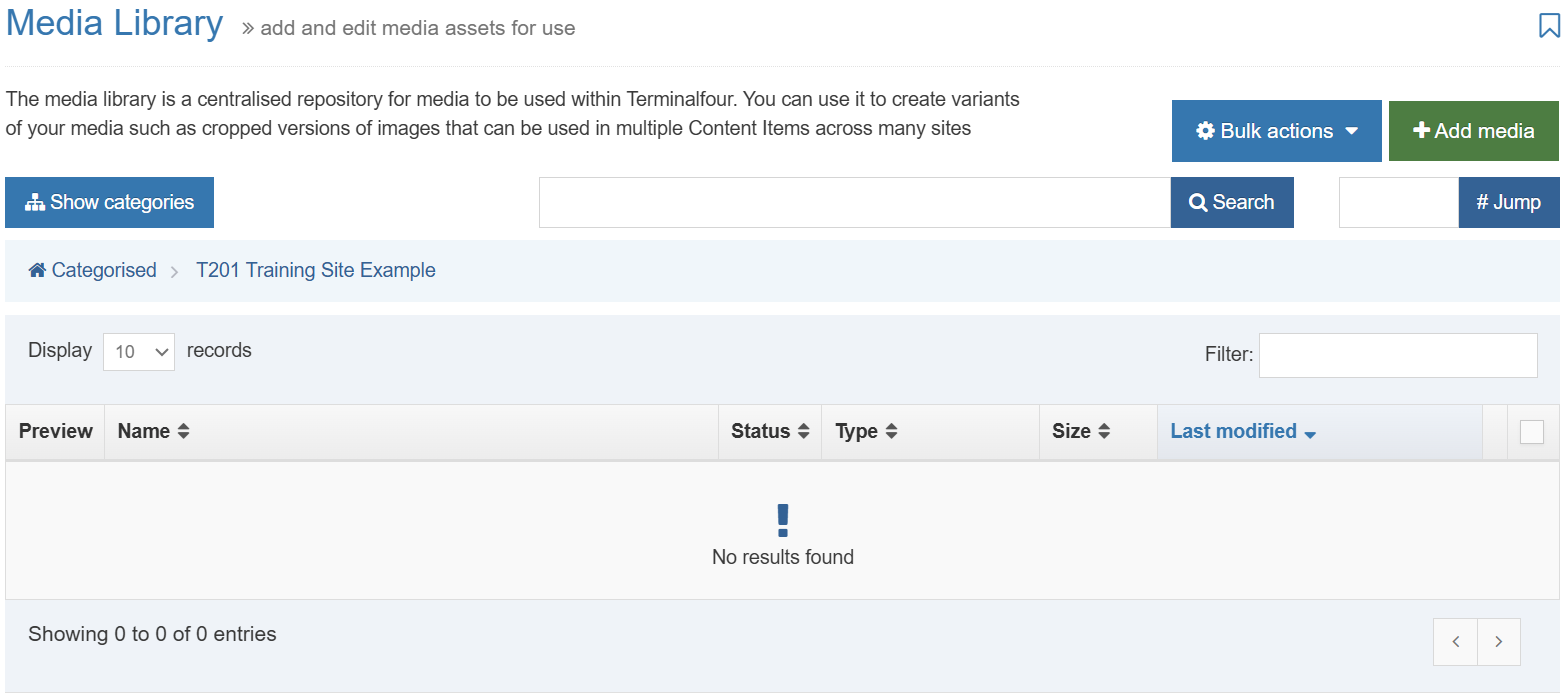
How to add a media category
- To add a Category, go to Content and select Media library.
- The Media Library opens.
- Expand the tree structure to find the "Training" category and click on the Actions menu.
- Click Create sub-category.
- Enter your new category name and click Save changes.
- Click on your new category.
Upload and use an image
- Now that you understand how the Media content type is pieced together, you should have a better idea of how the Media Library content is used.
- Upload an image to the Media Library, create Image Variants and use the image in content.
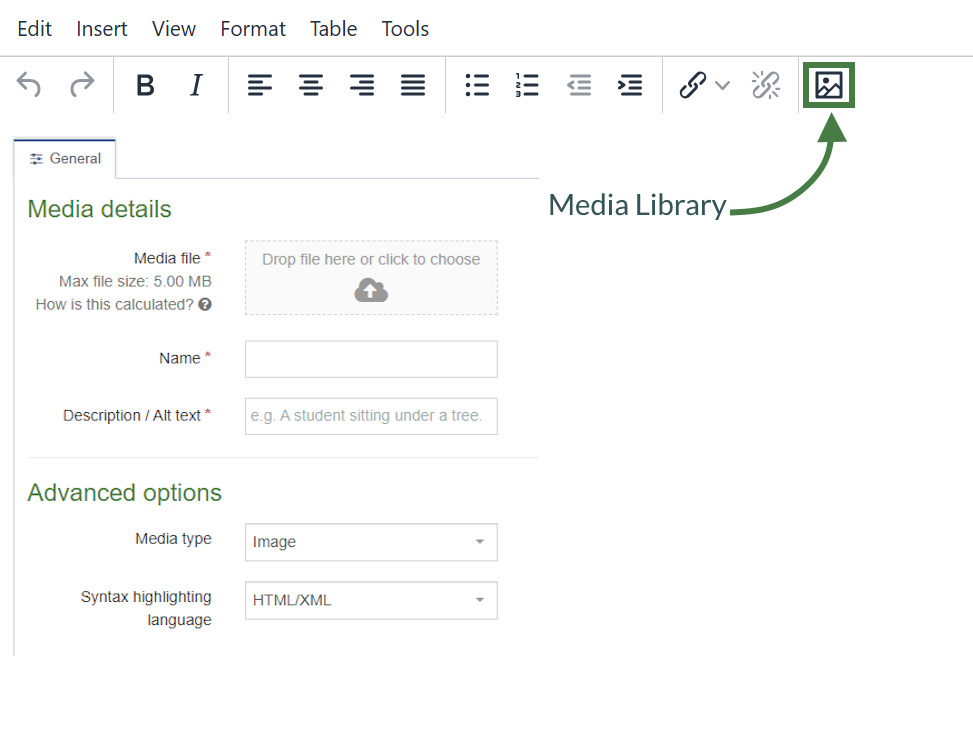
How to upload media
- From the site structure screen, locate the section you added content to earlier.
- Go to the Actions menu and select Edit content. Click on the content you want to edit.
- In the main body of your content, place the mouse where you want to insert an image; click the media icon.
- The media library opens. Locate the category you wish to add the image to and click on it.
- Click +Add media (the use of Name, Description and Keywords is dependent on your media content layouts):
- Media file: drop your image file here or click to select the image from your drive.
- Name: enter a name for your Image. By default, this is not output on the site, but is used only as a name in the
Media Library to allow easy identification. - Description/Alt text: by default, this is used as the alt tag and should always be filled to describe the image.
- Media type: select Image -this is automatically detected where possible.
- Syntax highlighting language: for non-binary files you can select what syntax highlighting to use (if any).
- Media Language Dependence:
- Fully independent: the media is the same in all languages and cannot be translated.
- Independent media file: the file and thumbnail exist independent of language. Other elements can be modified based on language, such as the image description/alt text.
- Fully dependent: all elements depend on language and can be translated.
- Click Save changes to add your image.
- The image is ready to be used. Hover over it and click Select.
Image variants
- To fit an image into a piece of content, it may be necessary to resize or crop the image.
- To ensure the image is properly resized, use the Media Library’s facility to create variants.
.png)
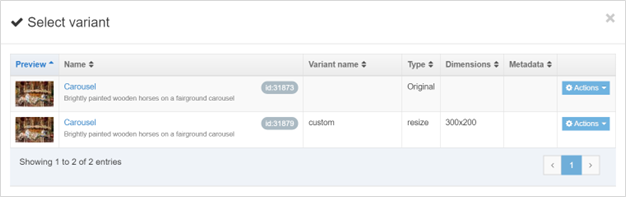
How to create image variants
- From your content, click Insert file link or image.
- Locate the image in the Media Library, click Actions > Variants.
- Enter a Variant name and a Description.
- From here you can either Crop or Resize the image.
- Click Save variant.
- Add additional variants if needed.
- Once you have added the necessary variants, click Cancel to exit Variants
- To use a variant in content; click on your image and any variants associated with the image will be displayed.
- Click Actions > Select media to add the image variant of your choice.
Media attributes
- Depending on how your Media Library has been configured, you might have permission to modify your images attributes. For example, you might be able to specify a margin, add a caption or float the image to the left or right.
- Once the image is in the editor, double-click the image to explore what attributes are available.
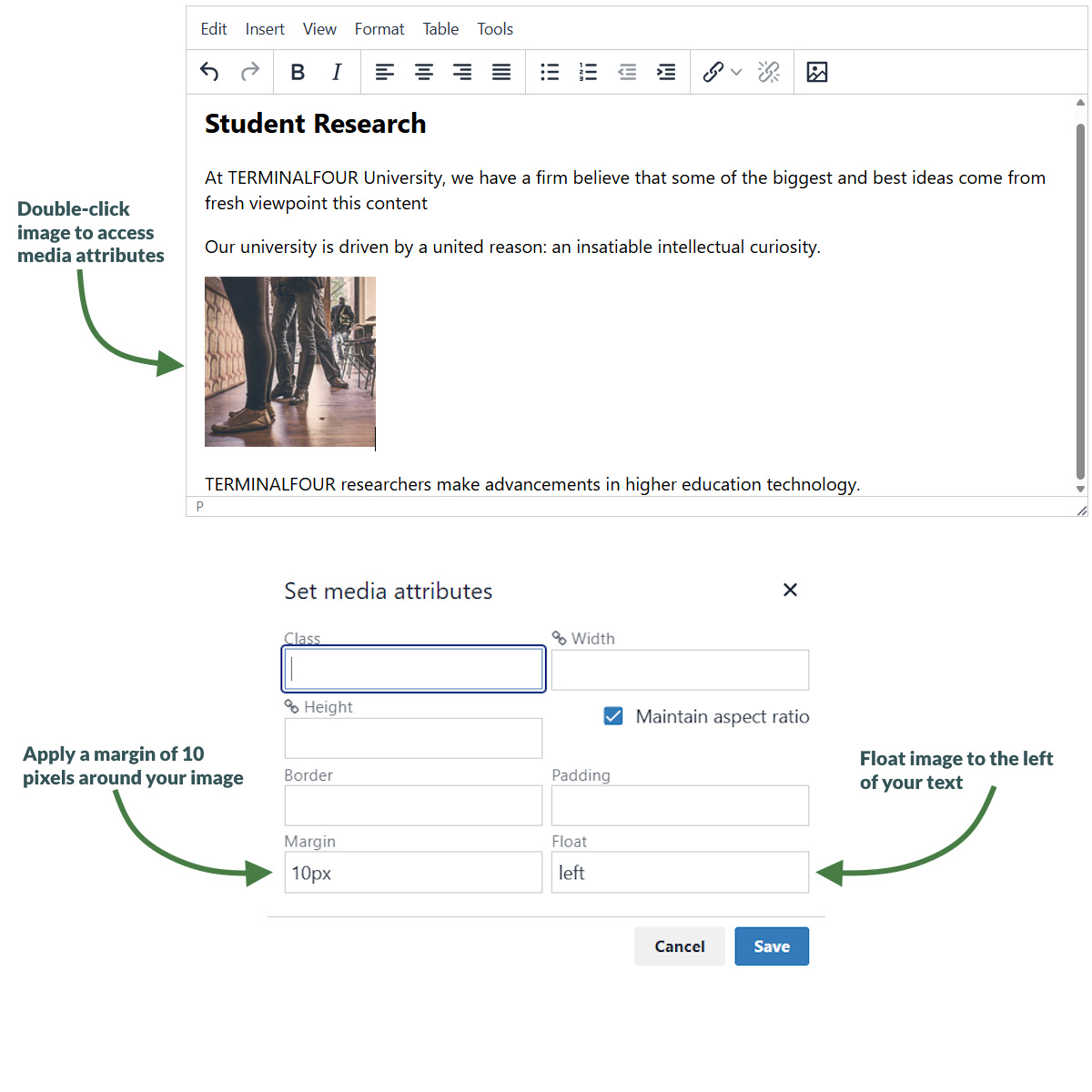
How to set media attributes
The attributes available in your Terminalfour instance may differ from the ones shown here.
Double-click your image to explore what attributes are available.
- The image (or image variant) has been inserted in your content. If your Media Type Layout for images contains "style" options, you can set those from the content.
- Double-click on the image to Set Media Attributes.
- Specify the values you wish to set. In the example above, a margin of 10px has been set, and the image has been set to float left (wrapping the text around the image with the image floating to the left).
- Click OK to return to the content screen.
- Click Save changes to save the changes made to the content.
Upload and use a PDF
- You can upload a PDF to the Media Library, use it in your content and edit the Media Attributes.
- Edit your content.
- Open the Media Library and locate your category.
- Upload a PDF and add a link to it.
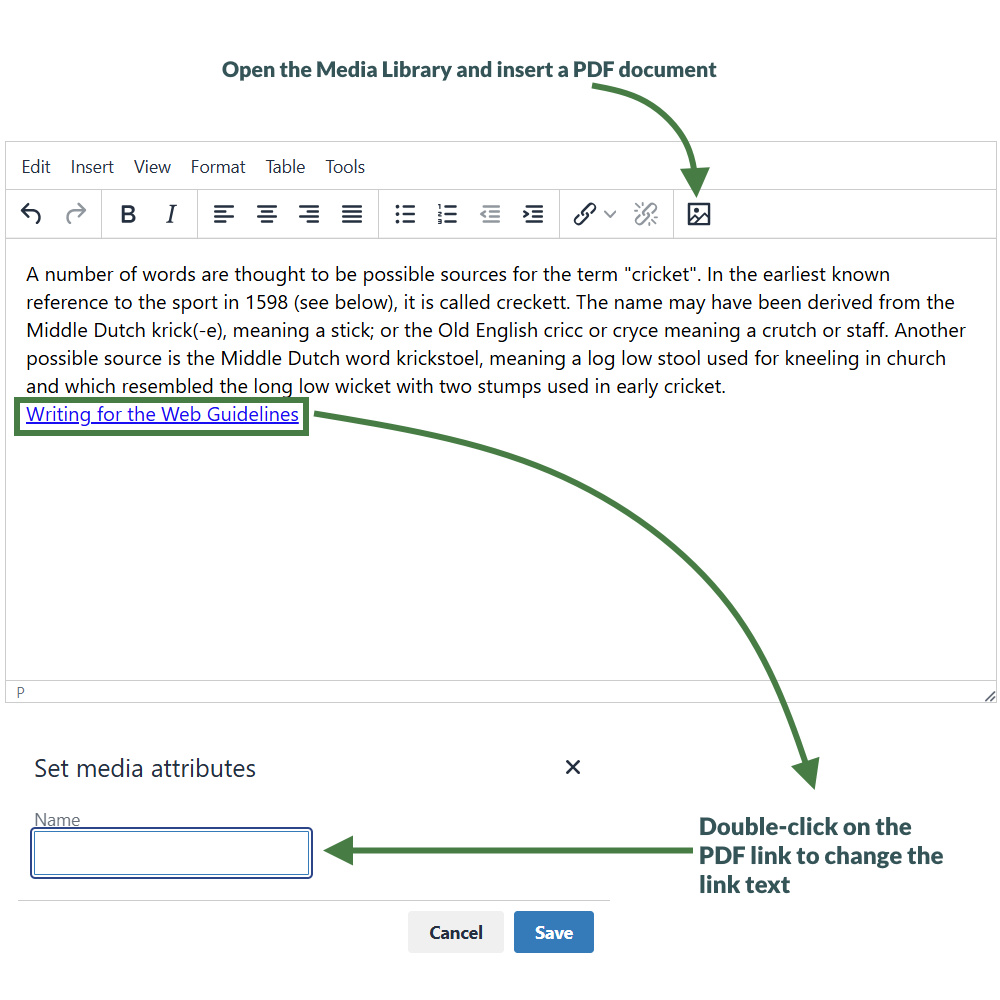
How to upload a PDF
- To add a PDF link to your content, click where you want the link to be and click the Media Library icon.
- The Media Library opens. Locate the Category you wish to add the PDF to and click on it.
- Click +Add Media (the use of Name, Description and Keywords is dependent on your Media Library's configuration):
- Media file: click here and select the relevant PDF.
- Media type: this is automatically detected where possible. Alternatively, select the Media Type you want to use.
- Name: enter a name for your PDF. By default, this is used as a name in the Media Library to allow easy identification and serves as the link text in your content.
- Description: give your PDF a description; by default, the description of PDF’s is for internal use and does not appear on your webpage
- Syntax highlighting language: for non-binary files you can select what syntax highlighting to use (if any).
- Media language dependence:
- Fully independent: the media is the same in all languages and can hence not be translated.
- Independent media file: the file and thumbnail exist independent of language. Other elements can be modified based on language.
- Fully dependent: all elements depend on language and can be translated.
- Click Save changes to add your PDF document to the Media Library.
- The PDF is ready to be used. Click it to add a link to your content.
- The PDF link has been inserted into your content.
- If you do not wish to use the item’s Name as the link text, double-click on the PDF link text to open the Media attributes.
- In the empty Name element, enter the new link text.
- Click Ok to return to the content screen.
- Click Save changes to save the changes you’ve made.
Mirror and duplicate
- Branches of the Site Structure as well as individual pieces of content can be Mirrored and Duplicated.
- If you Mirror a piece of content, there is only one ID, and any changes made to the content will affect all instances of it.
Mirror Content/Sections Configuration
You can enable/disable the mirroring of sections or content by changing the settings:
Administration > Hierarchy & content settings > Hierarchy > Enable mirroring of sections
Administration > Hierarchy & content settings > Hierarchy > Allow non-mirroring of content
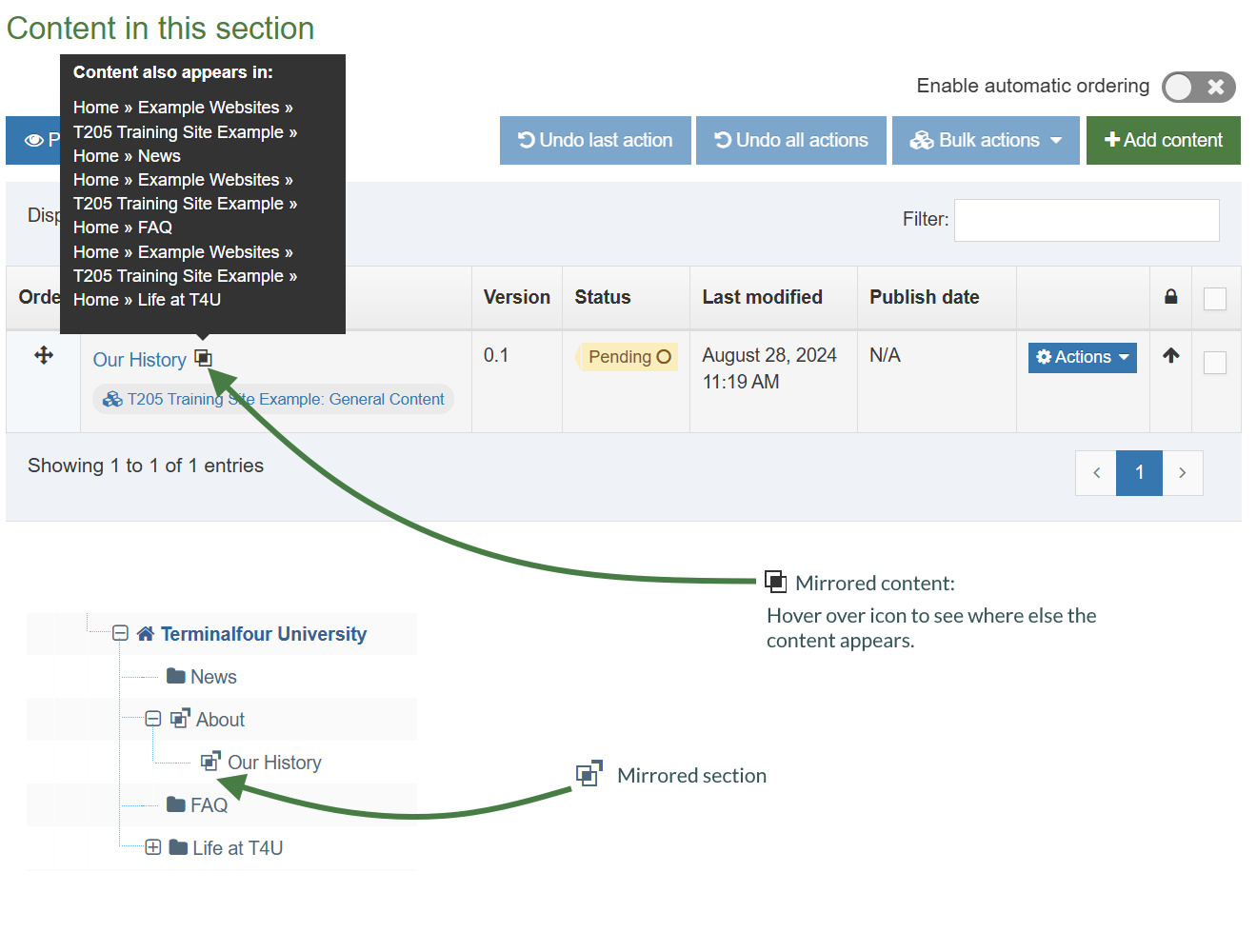
How to mirror/duplicate
Mirror/duplicate content
- Select Edit content from the Actions menu beside the section containing the content you wish to mirror or duplicate.
- Select Mirror or Duplicate from the Actions menu beside the content.
- The Site Structure opens. Click on the Section you wish the mirrored/duplicated content to appear in. A small icon appears beside the mirrored content. Hover the mouse over it to see the various locations of the content. The duplicated content, however, will appear as new content.
Mirror/duplicate branch
- Select Mirror Branch or Duplicate Branch from the Section Drop-Down Menu beside the section containing the content you wish to duplicate.
- Select the Section you wish to place the mirrored or duplicated section under.
- A mirrored section’s folder symbol will have an arrow pointing out for the original section and an arrow pointing in for the new section.
Approve content
- When content is added to Terminalfour, it needs to go through an approval process before it can be published; only published content will be visible on your website.
- The content you have created so far is all pending approval. Ensure your content is approved.
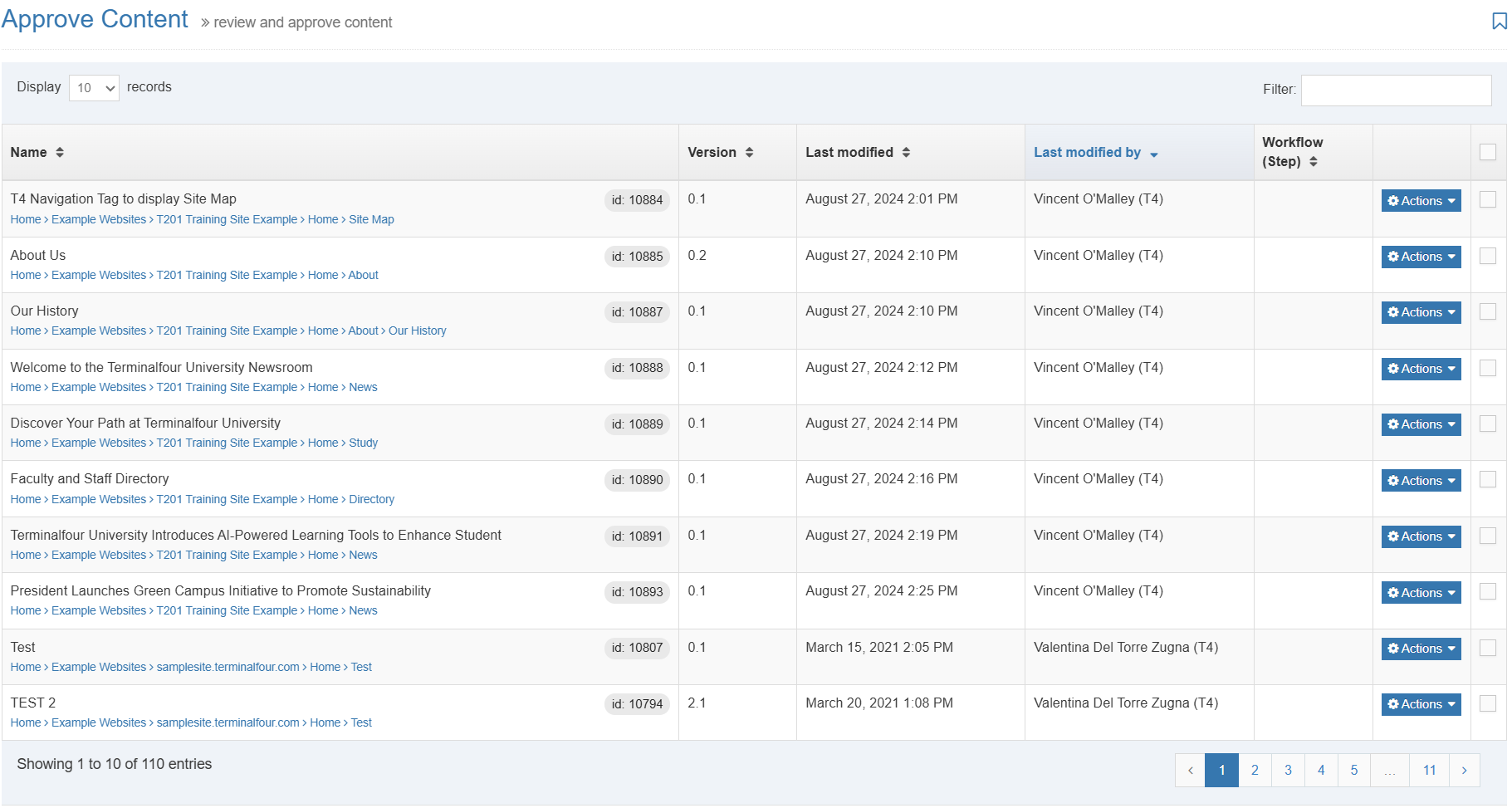
A note about Approving Content
> Approval of content can also be done from the Direct Edit screen.
> If selective approval is enabled, you can approve content by checking the Approve box beside the content and then clicking on Approve.
> The Approve Content screen will refresh itself periodically; the refresh rate can be set in Configuration.
> If content is assigned to a workflow, approving the content will advance it to the next step. Fast Track is an option available to Administrators allowing you to by-pass any further steps in the workflow and brings the content straight through to completion of the Approval workflow.
How to approve content
- To approve content, go to Content > Approve content.
- There are three tabs available to you; Pending, Inactive, and Workflow.
- The Pending tab will contain a list of content you can approve; you can sort by name, priority, or last modified. Hover your mouse over the section breadcrumb to see the exact path to the content.
- The Inactive tab will contain a list of any content which has been set as Inactive.
- The Workflow tab will list details of all content currently in a Workflow Queue.
Content status color code
 Approved Content
 Pending Content
 Inactive Content
- From within the Pending tab; click the name of a piece of content to check the details.
- Preview the content by clicking on a channel from the Published Channels list.
- Click Show History to view any previous versions of the content.
- Click Edit if you wish to make changes to the content.
- If the content is assigned to a workflow, an Administrator can select a Fast Track option using the radio buttons.
- No Fast Track will not Fast Track content.
- Advance to Next Step will advance content to the next step of the Workflow.
- Advance to Completion will by-pass any remaining workflow steps and bring content approval to completion.
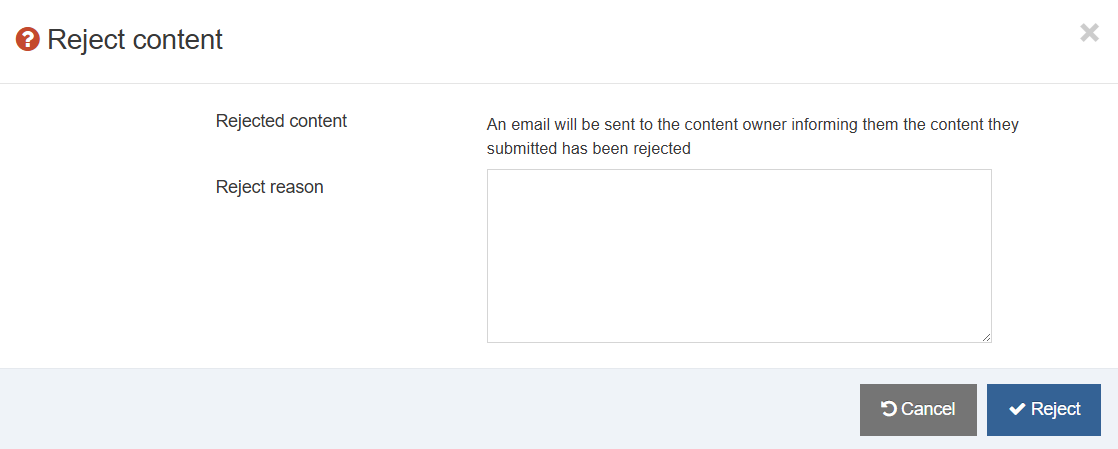
- Click Approve if you are happy to approve content; otherwise, click Reject.
- When content has been rejected, a Reject Reason can be added to explain the decision.
- Once content has been approved, it will disappear from the main list.
- In the Site Structure, the approved content appears in the green column
Workflow
- By default, content goes through an approval process in Terminalfour. Moderators + can approve content in sections they are assigned to. To specify a process for approving content, you can create workflows.
- Create a workflow to ensure all content added using your content type for generic content is approved by you.
- Assign the workflow to your content type.
Assigning Workflows
> Workflows can be assigned to:
Sections,
Content types,
Media library categories
How to set up a workflow
- To build a workflow, go to Administration > User rights & roles > Workflow > Add new workflow
- Give your workflow a Name and Description and assign to your group; then click Save changes.
- The Steps tab appears. Click Add new step to add the first step to your workflow.
- Give your step a Name and Description.
- Select the Step priority; approvers can sort content by Priority in the Approval list.
- Check the box Restrict to editors if you wish to restrict the users who can review/approve this step to those who have editing rights to the content.
- Configure users:
Select the users or groups to be involved in this step. - Optional settings:
Select the radio button to specify what happens to a piece of content if it is rejected.- Content owner: will reject content back to the content owner.
- Last modified by: will reject content back to the person who last modified the content.
- Step X: send the content to a step within the same workflow and select the step.
- Different workflow: from a drop-down menu you can select a different workflow to send the content to.
- Do nothing: use this option if you do not wish to reject the content to anyone; content will therefore remain in the Approval list.
- Step approval settings:
If there is more than one approver in a workflow step, approval of content can be put to a vote; select the radio button for the option you wish to apply.- All moderators: if selected, all the approvers in this step will need to vote to approve the content.
- Majority: content will only be approved once a majority of approvers have approved the piece of content.
- X number of moderators: determines how many approvers will need to approve the content in order for it to be approved in this step; set a number by entering it into the field.
- Content owner: if selected, only the content owner can vote to approve content; this option requires that a content owner has been set. If no owner is set, the content may only be approved by an administrator.
- Enable active moderation if checked, the vote count will be for both approval and rejection with content being either approved or rejected once the configured “X” number has been reached.
- Notification settings:
Email alerts can be sent to content owners or those involved in the workflow step during the approval process. Avoid selecting all options as this generates large quantities of emails.- Start: an alert is sent to the content owner or those involved in the workflow step when a piece of content enters a step they participate in.
- In progress: an alert is sent to the content owner or those involved in the workflow step when a piece of content is either approved or rejected.
- End: an alert is sent to the content owner or those involved in the workflow step when a piece of content is either fully approved or rejected, hence completing the current step.
- User alert settings:
Specifies who receives alerts and notifications by email.- Content owner: this informs the content owner when any of the above alerts or triggers are fired.
- Step moderators: this informs any of those involved in the workflow step when any of the above notifications are sent.
- All content owners and moderators: this informs content owners and any of those involved in the workflow step when any of the above alerts or triggers are fired.
- Click Save changes to add the step to the workflow.
- Click Add new step to add a further step to the workflow if required, otherwise click Save changes.
- To assign the workflow to your content type, go to Assets > Content types > Edit your content type.
- From the Workflow drop-down list, select your workflow.
- Click Save changes.
Publish
- Once Content has been approved, it still needs to be published before the content will appear on the website.
- Publish the channel you have been working on. The trainer will advise you of the published URL.
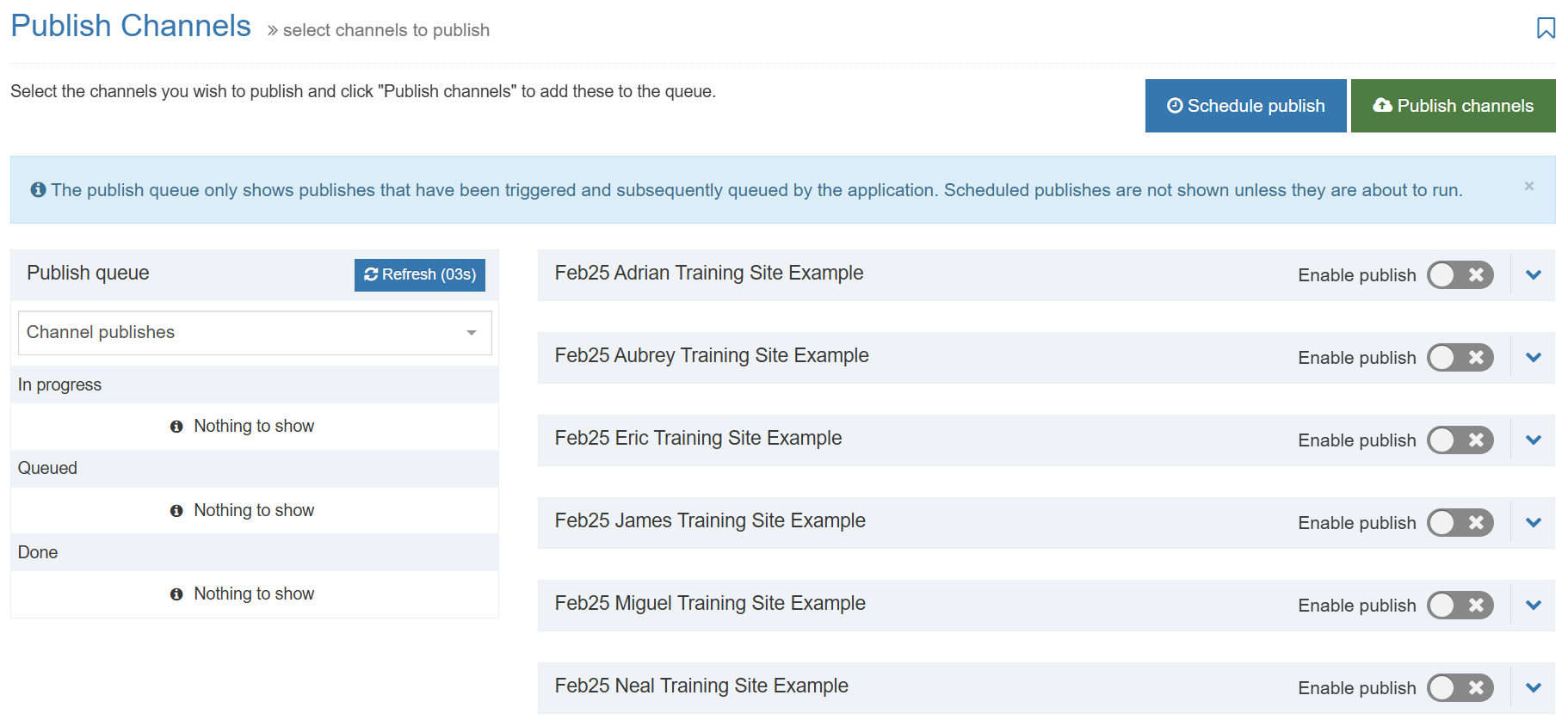
How to publish your website
- To publish your website, go toSites & Channels > Publish Channels
- Locate your channel and select Enable publish
- Click Publish channels to publish.
- You can also create a publish schedule by clicking Schedule publish.
- Next due: use the calendar to select the next publish date and time.
- Execution interval: select the frequency of the scheduled publish.
- Channel: set the channel to publish.
- Publish archive sections: check the box to force a publish of archived sections.
- Override publish period restriction: if your channel has a publish period restriction on fulltext content check this box to override the restriction.
Accessibility & SEO
- Accessibility checking functionality in Terminalfour allows you to determine how accessible your content is. This is important to ensure your site can be used by people with visual impairments, etc.
- Search Engine Optimization (SEO) checking functionality in Terminalfour allows you to determine how easily a search engine can find your content. This information can then be used to increase the visibility of content.
- Based on the information in the report, you can improve your content to obtain better ranking in search engines.
- Accessibility and SEO Reports can be run by Administrators; these can be scheduled to run periodically.
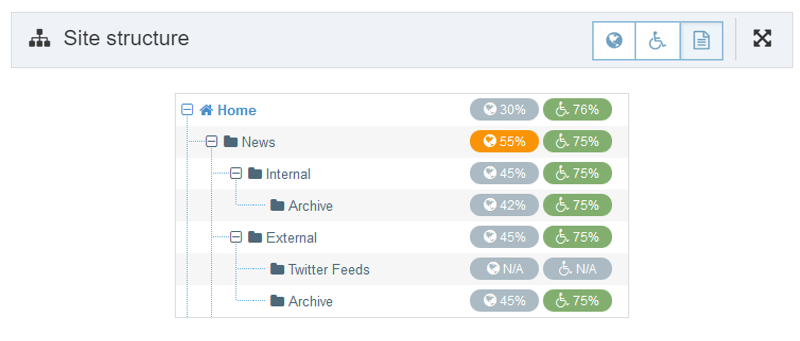
How to run an Accessibility and SEO report
- Ask an Administrator to run an Accessibility or SEO report. For one of your sections, click on the colored bar in the
Accessibility or SEO column; this will open up the Detailed results. - A Data Summary is displayed; click on Detailed page report for more detailed information.
Accessibility Report
- In Terminalfour 8.4.2 we announced a newly redeveloped accessibility reporting tool.
- This tool allows users to test any page in the Terminalfour Platform that they have access to to ensure that it meets WCAG 2.2 AA standards.
Accessibility is a crucial aspect of web design and content management, ensuring that all users, regardless of ability, can access, understand, and engage with digital content.
Adhering to accessibility standards not only enhances user experience but also broadens your audience reach while fulfilling legal and ethical responsibilities. Our new accessibility reporting tool is designed specifically for the Terminalfour Platform to streamline this process. By identifying and highlighting non-conformances with established accessibility guidelines, this tool empowers users to create inclusive content, making it easier to meet compliance standards and support diverse user needs.
Accessing the report
The report can be accessed from multiple places.
- Click on the Site structure icon.
- From the Sites structure screen, click on the Actions menu on a section.
- Select Accessibility report.
- If you need to run the report against a fulltext content item, you can do so by clicking the Actions menu on a piece of content and selecting Accessibility report.
- From Direct Edit, click the Accessibility icon in the left menu.
The report will show the same information about the accessibility of your page, regardless of where you open the report from.
The report is generated immediately when a report is opened. Meaning you can fix a problem and reopen the report and it will immediately reflect the change.
When the report is open you can navigate between pages and the report will updated to reflect the current page being viewed.
What's in the report?
When the report opens you'll see a split page view.
On the right, you'll see a preview of the page the report is run against.
On the left, you'll see the report itself which includes:
- The title of the the page or content item being reviewed
- The path to that section within the Terminalfour Platform
- The published page URL for the page being reviewed
- The total number of violations found on the page
- The total number of "Review items" found on the page
- Review items are items that the tool couldn't automatically confirm were meeting accessibility guidelines and need manual review
- A filter system allowing you to filter violations by severity
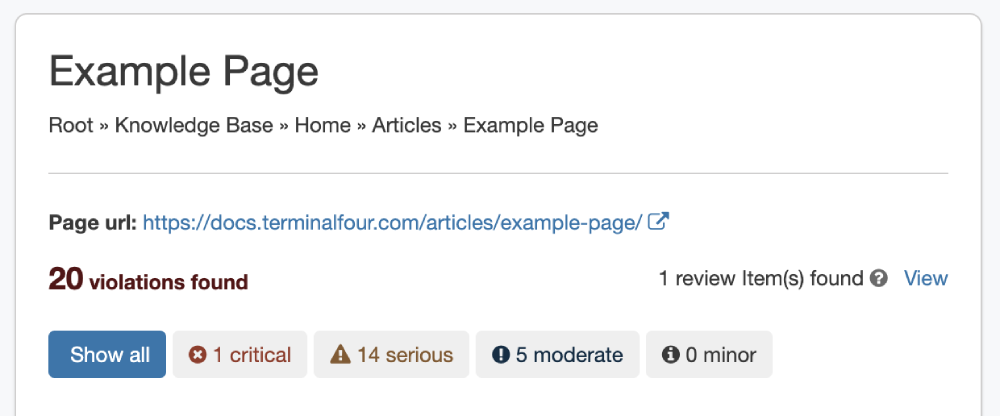
Below this, you'll be shown a list of all of the violations on the page.
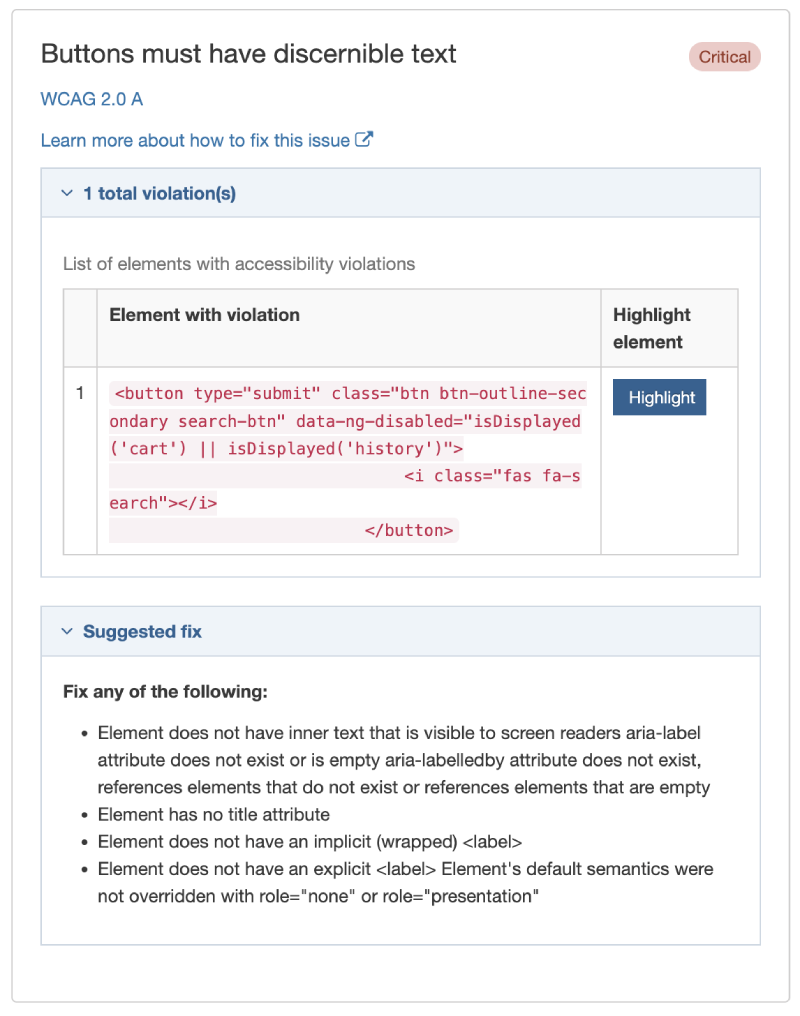
For each violation you'll be shown:
- The name of the accessibility violation (as defined in the WCAG Guidelines)
- The severity of the violation (as defined in the WCAG Guidelines)
- A link to an external site where you can learn more about this violation and how to fix it
- A list of the elements in the page that contain the violation
- You can click the "Highlight" button to scroll that element into view on the right and highlight it with a red border
- Suggested fixes for how you can address the violation
List of content types
Below is a list of some of the Content Types which are going to be used on your website. You may wish to pick one or two of these to focus on when training End Users.
| Content Type Name | Description |
|---|---|
| News |
Use this to add news items to your page. It is only available to approved Users and only enabled |
| Events |
Use this to add an event to your page. It is only available to approved Users and only enabled |
For users to be able to add content, they need to have access to Content Types from the site structure. To use a Content Type, a user must also be a member of the group in which the Content Type is available.
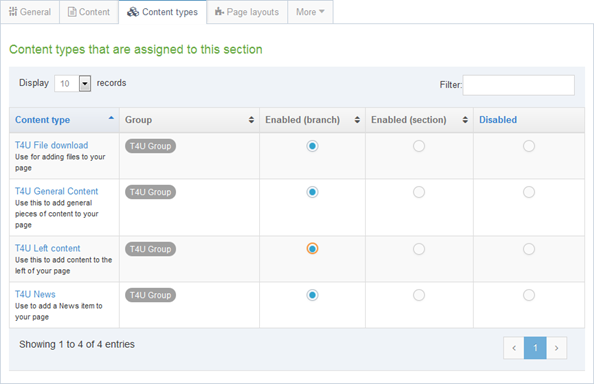
How to assign content types
- Assuming you already added the users to the relevant groups previously, from the Site Structure, click Edit section beside the section you wish to assign the Content Type to, i.e. Training.
- Select the Content types tab.
- Select the radio button to enable the Content Type either at branch or section level. If you select "branch", the Content Type can be used for this section and its sub-sections. If you select "section", the Content Type can only be used for this section.
- Click Save changes.
Assign a page layout
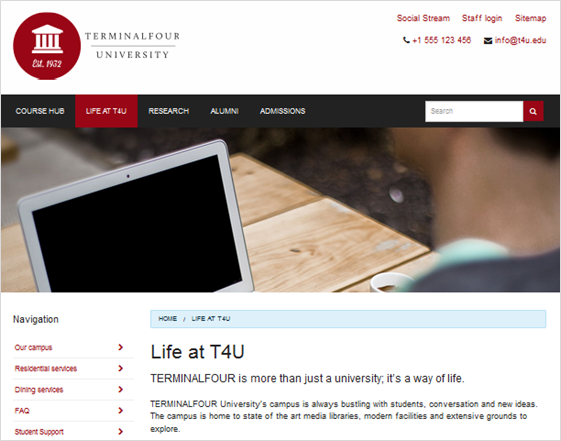
- You can decide which Page Layout you want to use to display the training content. You may want to opt for an “inner” page layout to make as much room for content as possible. The example below has the content area highlighted.
How to assign a page layout
- From the Site Structure, click Edit section within the training section Action menu.
- Select the Page layout tab and select the relevant page layout for your site. You may need to select from the most appropriate Channel.
- Click Save changes.
- Preview to ensure the new page layout has been applied and works as expected. This will require that you have a piece of content to preview first.
Delete content after training
- Once training has been completed, you may wish to delete the attendees’ work in preparation for the next training session.
- Delete sections and content which are no longer required.
Deleting content
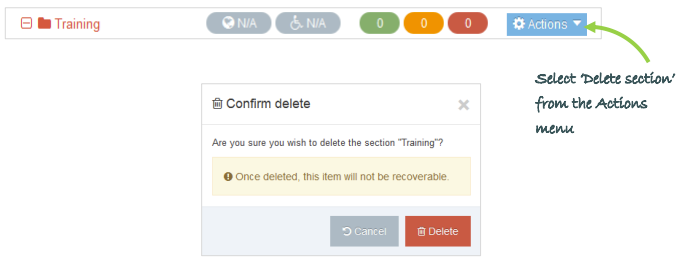
When you delete a piece of content in Terminalfour, you do not remove it from the system immediately. Instead, an Administrator will approve the deletion before it disappears from view. Once this is done, the content and its history will be gone from the database.
How to clean things up after training
- Decide which of the training sections you wish to delete.
- Select Delete section from the Actions menu beside the section you wish to delete. This will delete the current section and all of its sub-sections (branch).
- You will be asked to confirm delete, click Delete to confirm.
- Repeat the above steps until you have deleted all the unwanted training sections.
The following steps will need to be completed by an Administrator user.
- To Purge a Section or Content, go to Content > Recycle content.
- The Inactive content tab displays all content which have an Inactive status.
- Check the content you wish to purge.
- Click Purge content to remove content.
- A warning is displayed that you are about to delete content, click Purge to completely purge the content.
- The Inactive sections tab displays a list of all sections which have an Inactive status.
- Check the sections you wish to purge.
- Click Purge sections to remove the sections.
- A warning is displayed that you are about to delete the section(s), click Confirm to completely purge the content.
- If a purged section contained content, this content will now be moved to the Orphaned content tab.
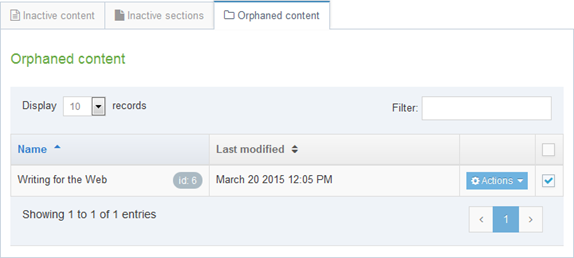
- The Orphaned content tab contains a list of all content which previously resided in a section which has been purged.
- If you do not wish to delete the content:
- Click the content’s Actions menu > Move content.
- The Site Structure will be displayed.
- Select a new location for the content; click on a Section and click Add content.
- The content will be moved to your chosen section.
- If you do wish to delete the content:
- Check the content you wish to purge.
- Click Purge content to remove the content.
- A warning is displayed that you are about to delete the content, click Confirm to completely purge the content.
- If you do not wish to delete the content:
Feedback survey
Congratulations on completing the Terminalfour Train the Trainer course.
Please provide feedback in our on-line survey.